Better family involvement in care starts with you choosing what staff see.
Family involvement in care is easy to welcome and harder to manage once the photos and videos start arriving. CareStream lets relatives and friends share through a private link, while a manager decides what staff see. It sits alongside the rest of your training and knowledge tools.
14 day free trial · Set up in a day · UK data residency
Families send things. Somebody has to decide what happens next.
A scenario we see in many care settings.
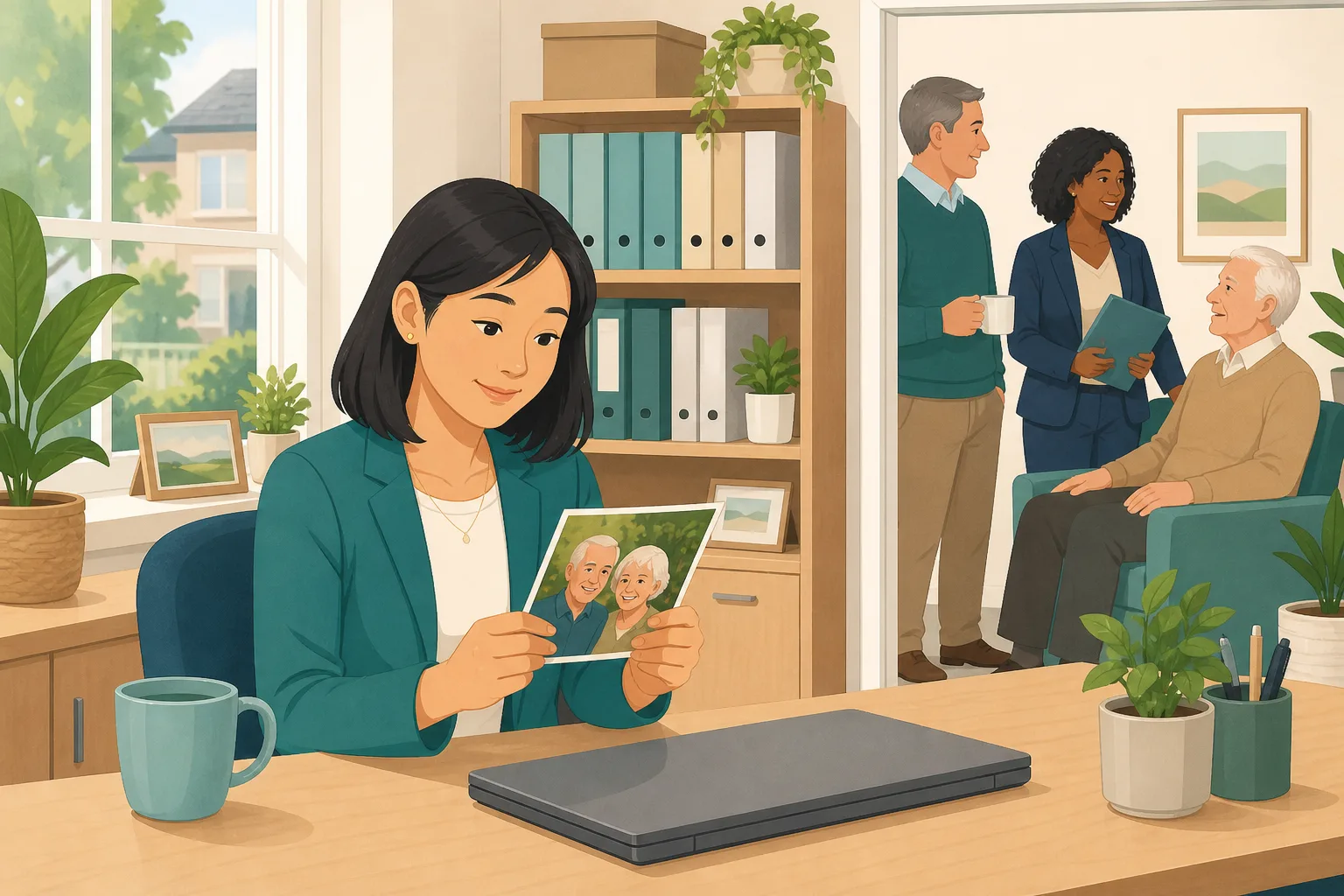
Dawn manages a care home with a busy mix of long stay and respite residents. Over the last fortnight, relatives have sent a few photos and short videos for four residents. She likes that they want to be involved. What worries her is the middle step. Who looks at each item before the team sees it? Is anyone else in the picture? Does the caption say something a relative might regret? Right now the answer is whoever happens to open the email, and Dawn does not want that to be the system.
Mrs Adeyemi's son asks if he can send photos.
Dawn says yes. She is pleased he asked.
A few photos arrive. The team is glad to have them.
A carer forwards one to a colleague. Nobody checked it first.
A photo shows three other residents. Nobody asked them.
Dawn cannot tell who has seen what, or when.
A daughter asks if her dad's video was ever played. No record.
“How do you involve families, and protect privacy?” Two answers, no evidence.
Welcoming families is the easy part. The harder part is a clear point where a manager decides. Here is how that looks in CareStream, with the limits stated plainly.
An example scenario, not a named service.
Why a manager's check matters
Sharing is generous, and it still needs a second pair of eyes.
Families know the person best
A daughter's story, a grandson's hello or a photo of a first car tells staff things no assessment can. Good family involvement in care gives staff a way in to a conversation, and gives relatives a way to feel part of daily life.
It is part of person centred care
Providers must involve relevant persons in decisions and design care around preferences, and ensure the privacy of the service user. Both matter when families share pictures of someone's life.
Privacy is not automatic
A photo can show other residents, or something the person would not want others to see. A caption can name a relative who did not expect it to be shared. Deciding what goes in front of staff is a manager's call.
From a relative's message to something staff are allowed to see.
Photos and video messages are part of the resident profiles feature, in the same system as your policies and training. They are on Professional and above. See how staff use resident knowledge too.
Relatives and friends share through a private link
- You invite relatives and friends from the resident's Family tab. They open a private link with no login, and can add photos and short video messages
- A line above the buttons asks them to share only what they are happy for the care team to see, and to check anyone else in the photo is comfortable with it
- The link is used up when they press Send, and you can revoke it before then to stop further uploads
Example only. Names and statuses are illustrative.
You work through the Approvals tab
- Photos and videos wait on the resident's Approvals tab, and a count shows how many are waiting. Staff see nothing until you approve
- For a photo you can edit the caption. For a video you can preview it, edit the title and add a note for staff
- Choose Approve or Reject. Rejecting removes the file from storage straight away
Example only. Names and captions are illustrative.
A photo with other residents in it
- If a photo shows other residents who have not agreed to be in it, reject it. The file is removed at once
- Speak to the relative yourself and say why, kindly. Ask whether they have another picture of the person on their own, or with family
- CareStream does not send the relative a message when you reject something, so the conversation is yours to have
Example only. This is a note your own team might write, not a CareStream screen.
You check what each relative has shared, and who has played a video
- The From family tab lists each relative or friend as a drawer. Open one to see what they sent, when you approved it and who approved it
- On the resident's Profile tab, Recently played shows who played a video message and when. That is a record of plays, not of what anyone felt
- Approved photos and videos can be deleted from the resident's record at any time
Example only. Illustration, not a real resident.
The questions managers ask, and how CareStream answers them
Read this as a conversation. The questions are the ones we hear most.
Who sees a photo or video before I approve it?
Only you and other managers with access to the resident's record. Staff and the Staff Hub chat see approved items of current residents and nothing else. Pending photos and videos are not shown to staff.
What can I change before I approve?
On a photo you can edit the caption. On a video you can preview it, edit the title and add a note for staff. You cannot trim a video in the browser, and you cannot change what is inside a photo.
What happens when I reject something?
The file is removed from storage straight away. CareStream does not message the relative, so you will want to speak to them yourself, kindly, and ask whether they have a different one.
How should we handle a photo with other residents in it?
Treat it carefully. Other people have their own privacy, and they may not have agreed to appear. Reject it, explain kindly and ask for another. Your own policies decide the rule, and CareStream cannot check who is in a picture.
Can I see who has watched a video?
You can see who played it and when, under Recently played on the resident's Profile tab. Each play is logged. It tells you a video was played. It does not tell you whether it helped.
Does the chat watch the videos or look at the photos?
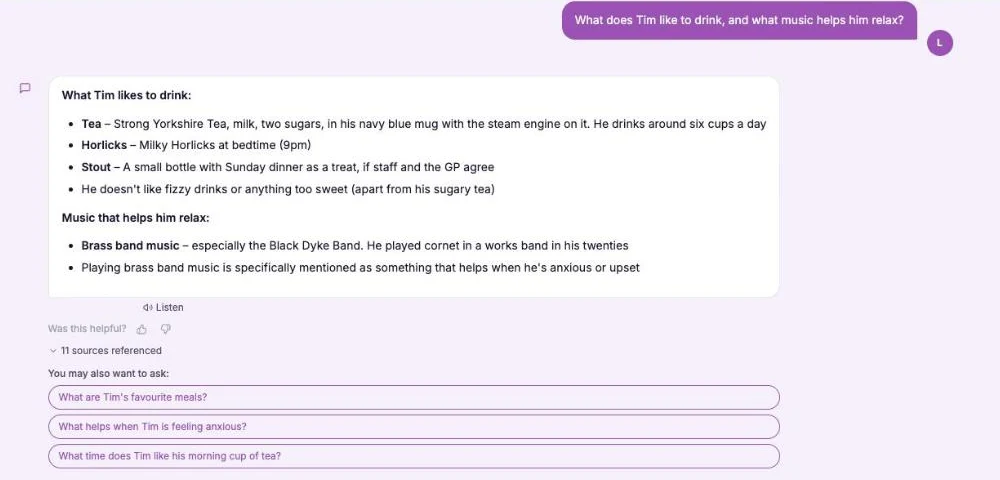
No. The chat finds items from the titles, captions and notes people wrote, and it never describes a picture or a video. Photos and videos are not used for any of its other answers.
What if someone moves on or passes away?
Photos and videos leave the hub at once and pending ones are deleted. Approved files stay in private storage for the retention period, like the written profile, then are deleted with it.
Which plan is it on, and can I try it?
Resident profiles, photos and videos are on Professional and above, with a 14 day free trial. See the pricing page. You can create an account or book a demo to see it first.
Honest limits: you decide, and CareStream cannot judge for you
It cannot see who is in a picture
CareStream does not look inside photos or videos, so it cannot spot another resident or something unsuitable. That check is yours, on the Approvals tab, before anything reaches staff.
Approval is not consent
Your approval controls what staff see. It does not record that the resident, or anyone else in the picture, agreed. Capture that in the way your own policies require, and keep your own notes.
Plays are logged, outcomes are not
You can see who played a video and when. CareStream does not record how the person responded. It is on Professional and above, and relatives cannot see the profile or message the team through it.
Training built from your own policies
Everything on this page is part of the product. Here is where to read more.
Training built from your own policies
Ad hoc training from your policies, face to face training organised, and wrong answers that become lessons.
See the featureResident knowledge for your team
Give staff quick, short answers about the people they care for, drawn from what you have recorded and approved.
See resident knowledgeDementia awareness training
A course that helps staff understand the person behind the diagnosis.
See the courseGuides on this subject
This Is Me Document: What Goes In It and How a Home Keeps It Alive
A line that says "likes tea" does nothing for a night carer. This reference sets out what a good This is me style document holds, and how a home...
Read article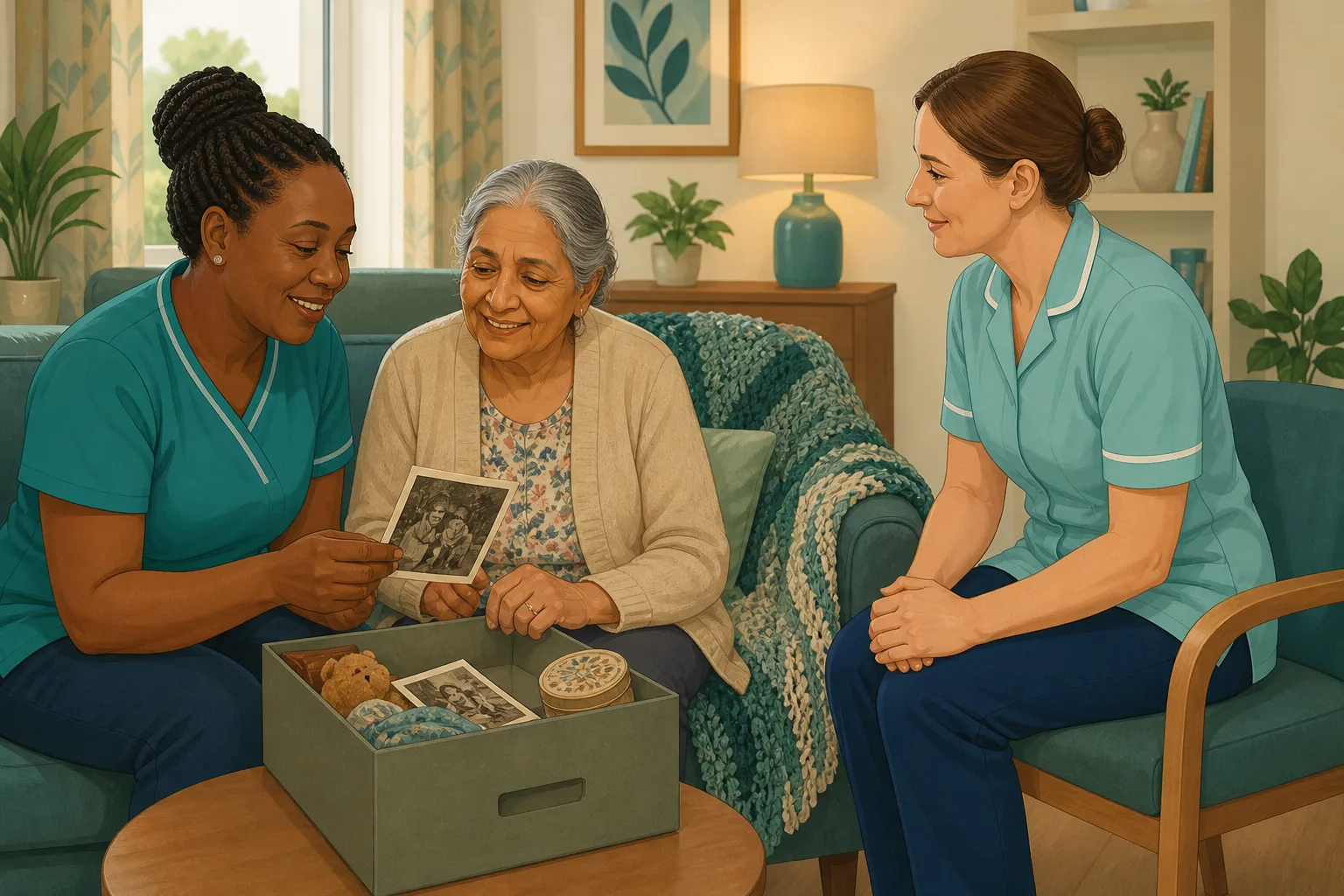
Dementia Training Standards Framework: What Should Happen After the Course
A seven step walkthrough of the Dementia Training Standards Framework, from choosing a tier to the follow-up and refresher that happen after the...
Read article
Difference Between Policy and Procedure: Five Beliefs That Leave Care Staff Guessing
A policy says what a service commits to. A procedure says who does what. Five common beliefs about the two, tested against the law, and a quick test...
Read articleApproving photos and videos, answered
Involving relatives
What are good person centred care examples involving families?
Asking a daughter to record a hello for the evening, a son sharing a photo of the allotment, or a friend adding what a person loved to eat. Each gives staff something real to say. CareStream gives relatives a private way to share, and you decide what staff see. Our guide to the this is me document has more.
How do we encourage family involvement in care without more admin?
You can ask relatives and friends from the Family tab, and set a gentle reminder by email if you wish. Everything they send waits on the Approvals tab in one place.
Can relatives see the resident's profile?
No. They use a private link to add photos, videos or answers. They cannot see the profile, and the link is used up once they press Send.
Do we have to use photos and videos?
No. They are optional for each person. See resident knowledge for how staff use what you approve.
Privacy and records
Are the files private?
Yes. Staff see them through short lived links when signed in, and there is no public web address. Each photo is checked, scanned and saved again without location data, and videos have location and device details removed.
What does the regulation say about privacy?
Regulation 10 says providers must ensure the privacy of the service user and support their autonomy. Check what that means for your service with your own policies.
How does data protection law treat consent?
The ICO explains that consent is one of several lawful bases. If someone withdraws consent, you must stop using their information. Take advice on the right basis for you.
Can I delete something I approved earlier?
Yes. You can delete an approved photo or video from the resident's record at any time. It is removed from the hub and from storage.
How to review what relatives and friends send, kindly and consistently
A quick, repeatable routine keeps the process fair and respectful. A few minutes on a set day each week is usually enough.
Decide your rules once, and tell families
Agree what you will and will not accept: no other residents in the picture, nothing that would embarrass the person, short and warm videos. Put it in a sentence in your invitation so relatives know in advance. The person-centred care regulation is a good reminder of why you ask.
- Does the item show anyone other than the resident or the sender?
- Is the caption or title clear, kind and accurate?
- Would the resident be comfortable if staff saw it?
- If I reject it, have I got a gentle way to explain?
Write captions that staff can find
Edit a caption to a few plain words and a name, such as “Mum at the allotment, 1988”. For a video, use the title to say who it is from and add a note for staff on what it is about. Staff and the chat find items by those words.
Close the loop with the relative
Say thank you when you approve, and explain kindly when you reject. If you want staff to understand why this matters, point them to your dementia awareness course and the Mental Capacity Act course, which covers wishes and best interests.
This page describes how the software works and is not legal advice. Check your own policies and local guidance for how you collect consent and share family photos and videos.