A daughter wants to record a message for a dementia life story. You check it before staff see it.
A daughter would like her father to hear her voice, not just read about her. You want a dementia life story that includes the people who love him, without video clips on a personal phone. CareStream gives her a private link, holds her video for your approval, and shows approved clips to staff. It sits alongside the rest of your training and knowledge tools.
14 day free trial · Set up in a day · UK data residency
She has the words. She wants him to hear them.
A scenario we see in many care settings.
Mr Hargreaves moved in three weeks ago. His daughter, Helen, lives four hours away and cannot visit every week. She has written a page about his life for the key worker, but she says it is not the same as him hearing her say good morning. She would happily record a short hello and a story about the caravan at Filey. The home has no safe way to take it. She offers to send it to a carer's phone, and the manager is not sure that is wise.

Mr Hargreaves moves in. Helen writes up his life story.
The key worker reads it and learns about Filey.
Helen asks, “Could I record him a message?”
There is nowhere safe to send it, so the offer fades.
A carer offers her own phone. The manager says no.
Evenings are hard for him. His daughter's voice sits unrecorded.
Helen asks if the family have done enough. Nobody knows.
“How do you involve his family?” A written page is all you have.
The family wanted to give more. The gap is between that kindness and a safe way to use it. Here is how CareStream collects the video, lets you check it, and puts only approved clips in front of staff.
An example scenario, not a named service.
A dementia life story is more than a page of facts
Voices and faces carry what a document can only describe.
A familiar voice settles and connects
Life story work with dementia is usually about knowing the person. A short message from a daughter can give staff a way into a conversation, and gives him something to answer.
Care should reflect the person
Care must meet needs and reflect preferences. Where someone cannot decide for themselves, the Mental Capacity Act asks you to consider their past and present wishes and feelings, and to take into account, where practicable, the views of people interested in their welfare.
Video needs a careful gate
A clip can show other people, or something the resident would not want played. A manager should watch each one first, and the file should not live on a personal phone. Regulation 10 includes ensuring the privacy of the person.
From a private link to a video the team can play.
Video messages are part of the resident profiles feature, in the same system as your policies and training. They are on Professional and above. See how staff use resident knowledge too.
The family records through the same private link
- You invite the person by name and email from the resident's record. They get a private link and do not create an account
- On the page they tap Record a message, which opens the phone camera, or Choose a video. Each clip can be up to 60 seconds, up to 5 on one link, and up to 150MB per upload
- The upload shows progress and carries on if the signal drops. They can add a short title of up to 60 characters, and remove a clip before pressing Send
Example only. Names and figures are illustrative.
A consent line sits above the buttons
- The page asks them to share only a message they are happy for the care team to play to the resident
- It says a manager checks every video before staff see it, and that it is removed if the person moves on
- It also asks them to keep other people out of the picture unless those people are happy to be in it
Example only. Wording summarised, not the exact page.
You preview, edit the title, then approve or reject
- A family video waits on the Approvals tab under Videos waiting for approval. You can play it there first
- You can edit the title and add a note for staff, such as who is in it. Then you choose Approve or Reject. Rejecting removes the video from storage straight away
- You can also add a video yourself from the resident's record, and it is approved at once. Approved family videos also show on the From family tab, under the person who sent them
Example only. Nothing here has reached the care team.
Private, and gone when the person moves on
- Videos are private. Signed in staff of your service reach them through short lived links, only for current residents, and never through a public address
- When someone dies or moves on, their videos leave the hub at once and any video still waiting is deleted
- Approved files stay in private storage for the retention period, like the written profile, then are deleted with it
Example only. Illustration, not a real resident.
The questions managers ask, and how CareStream answers them
Read this as a conversation. The questions are the ones we hear most.
A relative wants to send a video for a dementia life story. What do I do?
You invite them from the resident's record with their name and email, and CareStream emails a private link. On that page they record or choose a short video and add a title. Nothing reaches your team until you have watched it and approved it.
Does the family need an account or an app?
No. The link is the way in, with no login and no password. They use the phone they already have. Once they press Send, the link is spent, and if they want to add more later you send a new link.
How long can a video be?
Up to 60 seconds, and up to 5 videos on one link, with up to 150MB per upload. If the signal drops the upload carries on from where it stopped. The clip is converted so it plays on a phone, a tablet or a computer, and location details are removed.
What stops an unsuitable video reaching staff?
You do. Each family video waits on the Approvals tab. You preview it, edit the title, add a note for staff, and approve or reject it. Rejecting deletes the file at once. Staff only ever see approved videos.
Can I upload one myself?
Yes. From the resident's record you can add a video with a title and a note. A video you add is approved at once, because you are the approver.
Does the system watch the video or describe it?
No. It never watches or describes a video. It only knows the title, the note and who sent it, so a clear title matters. There are no summaries, no speech to text and no staff downloads.
What happens if the resident passes away or moves on?
Their videos leave the hub straight away, and any still waiting are deleted. Approved files stay in private storage for the retention period, like the written profile, then are deleted with it.
Which plan is it on, and can I try it?
Resident profiles, photos and videos are on Professional and above. There is a 14 day free trial, and the pricing page shows which plan includes it. You can create an account or book a demo to see it first.
Honest limits: a gathering tool, not a video call
It is a message, not a conversation
The family record once and the team plays it back. CareStream does not do video calls, and the resident cannot record a reply. If you want a live call, you would arrange that separately.
Nothing is automatic
A video does not reach staff by itself. A manager has to preview and approve each one, so someone needs to check the Approvals tab. A video nobody approves stays hidden from the team.
Titles do the finding
The system cannot watch a clip. Staff find it from the title and your note. Videos shown in the hub are the newest ten per resident, and the family cannot see the profile or message you through the link. It is on Professional and above.
Training built from your own policies
Everything on this page is part of the product. Here is where to read more.
Training built from your own policies
Ad hoc training from your policies, face to face training organised, and wrong answers that become lessons.
See the featureResident knowledge for your team
Give staff quick, short answers about the people they care for, drawn from what you have recorded and approved.
See resident knowledgeDementia awareness training
A course that helps staff understand the person behind the diagnosis.
See the courseGuides on this subject
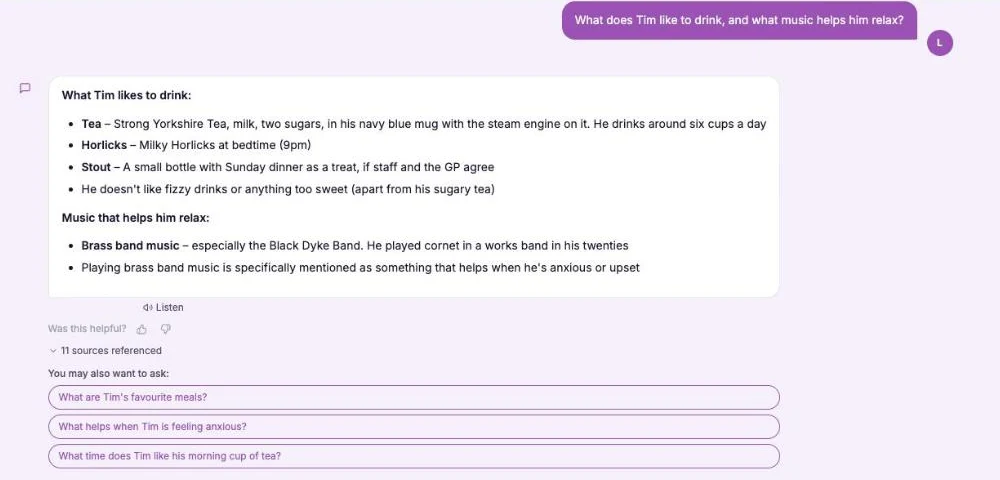
This Is Me Document: What Goes In It and How a Home Keeps It Alive
A line that says "likes tea" does nothing for a night carer. This reference sets out what a good This is me style document holds, and how a home...
Read article
Difference Between Policy and Procedure: Five Beliefs That Leave Care Staff Guessing
A policy says what a service commits to. A procedure says who does what. Five common beliefs about the two, tested against the law, and a quick test...
Read article
Dementia Training Standards Framework: What Should Happen After the Course
A seven step walkthrough of the Dementia Training Standards Framework, from choosing a tier to the follow-up and refresher that happen after the...
Read articleFamily video and life story work, answered
About video and life stories
What is a dementia life story?
It is a record of who the person is: their family, work, places, habits and what matters to them. Staff use it to start conversations and give care that fits. Read more in our guide to the this is me document.
What is life history work in dementia care?
Life history dementia work means gathering a person's past, from them and from people who know them, and using it day to day. A short video from a daughter is one way to add her voice to what you already know.
How does video fit with life story work for dementia?
Life story work dementia teams do is often written or photographs. Video adds a voice and a face. In CareStream approved videos sit with the resident's profile, so the team can find them when they need them.
Can the assistant describe what is in a video?
No. It never watches or describes a video. It only knows the title, the note and who sent it.
About approval, privacy and limits
How long can a family video be?
Up to 60 seconds each, up to 5 on one link, and up to 150MB per upload. The family can add a title of up to 60 characters and remove a clip before pressing Send.
Does a manager have to approve every video?
Yes. A family video stays hidden from staff until you approve it. You can edit the title first, or reject it. Videos you add yourself are approved at once.
Can the family see the videos we approve?
The link page lets them preview their own clip before they press Send, and after that the link is spent. It does not show the profile or other videos.
What do the regulations say about involving family?
Under section 4 of the Mental Capacity Act 2005, if it is practicable and appropriate, you take into account the views of anyone interested in the person's welfare. Regulation 9 requires care to reflect people's preferences. Check your own policies on consent and recording.
How to build a dementia life story with family video
A few habits make the difference between a clip that sits unseen and one that helps at four in the afternoon. Ask early, ask for a clear title, and check before you approve.
Ask for a short, warm message
Tell the relative that 30 or 40 seconds is plenty. A hello, the person's name, and one small story is more useful than a long one. Ask them to put a clear title on it, because staff find it by its title.
Before you approve a video
Watch it as a new carer would, and as the resident might feel about it. Edit the title so it is clear and kind. Reject anything that shows other people who might not want it shared, or anything the resident would find upsetting. You can read what the law says about dignity and respect in regulation 10.
- Is the person speaking someone the resident would be glad to hear?
- Does the title say who it is from?
- Does it show anyone else who might not want it shared?
- Would a new carer know when to use it?
Close the loop with the team and the family
Tell the key worker when a video has been approved and show them where to find it. Thank the relative personally. A dementia awareness course helps staff see why these details matter, and the Mental Capacity Act course covers wishes and best interests.
This page describes how the software works and is not legal advice. Check your own policies and local guidance for how you collect and share recordings of residents.