Give every carer a way in, without a phone on the floor
Many services do not let care staff carry personal phones on the floor, or only have one or two tablets for the whole team. CareStream can still be there when a carer needs it.
One tablet for the team. One PIN for each person.
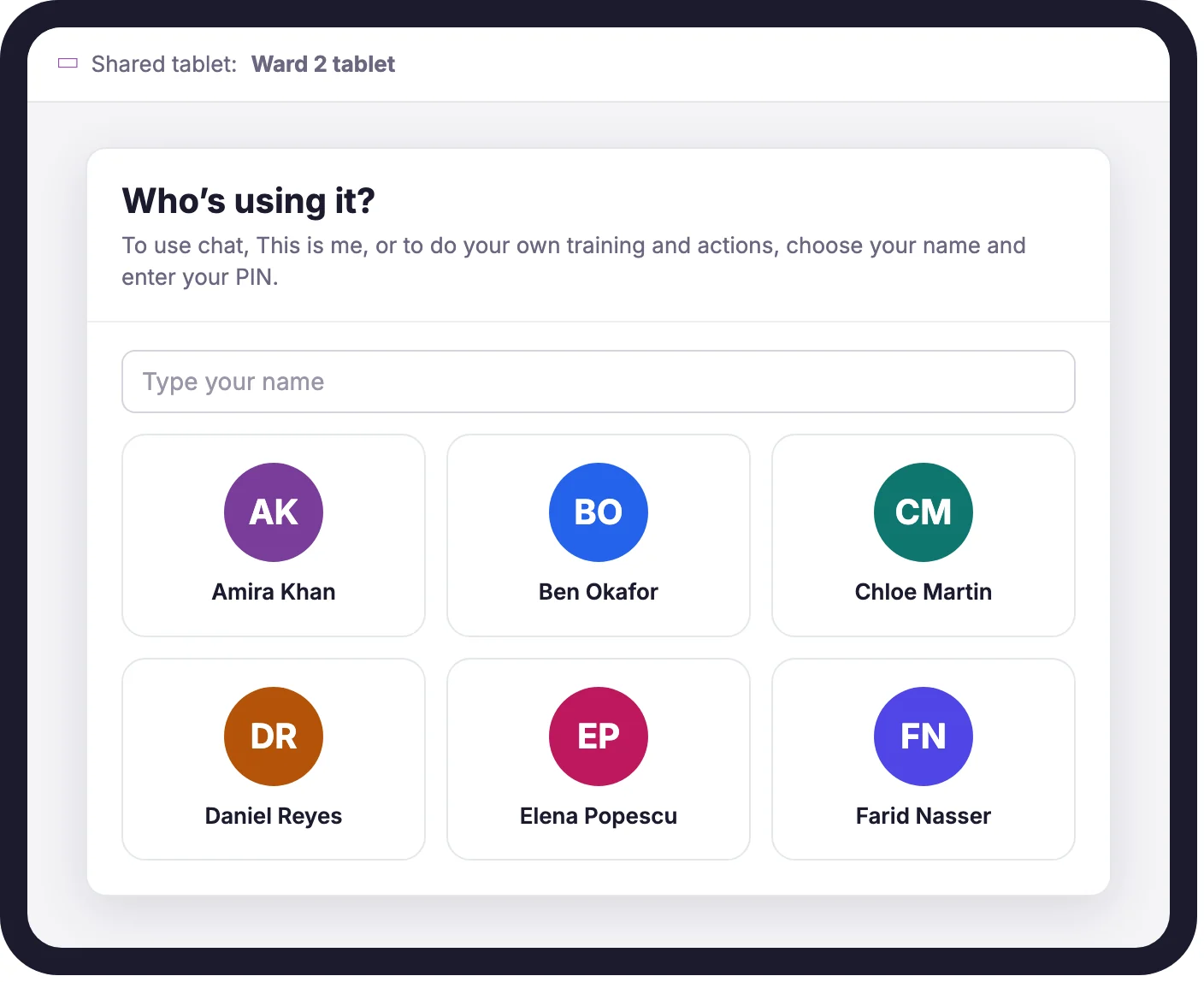
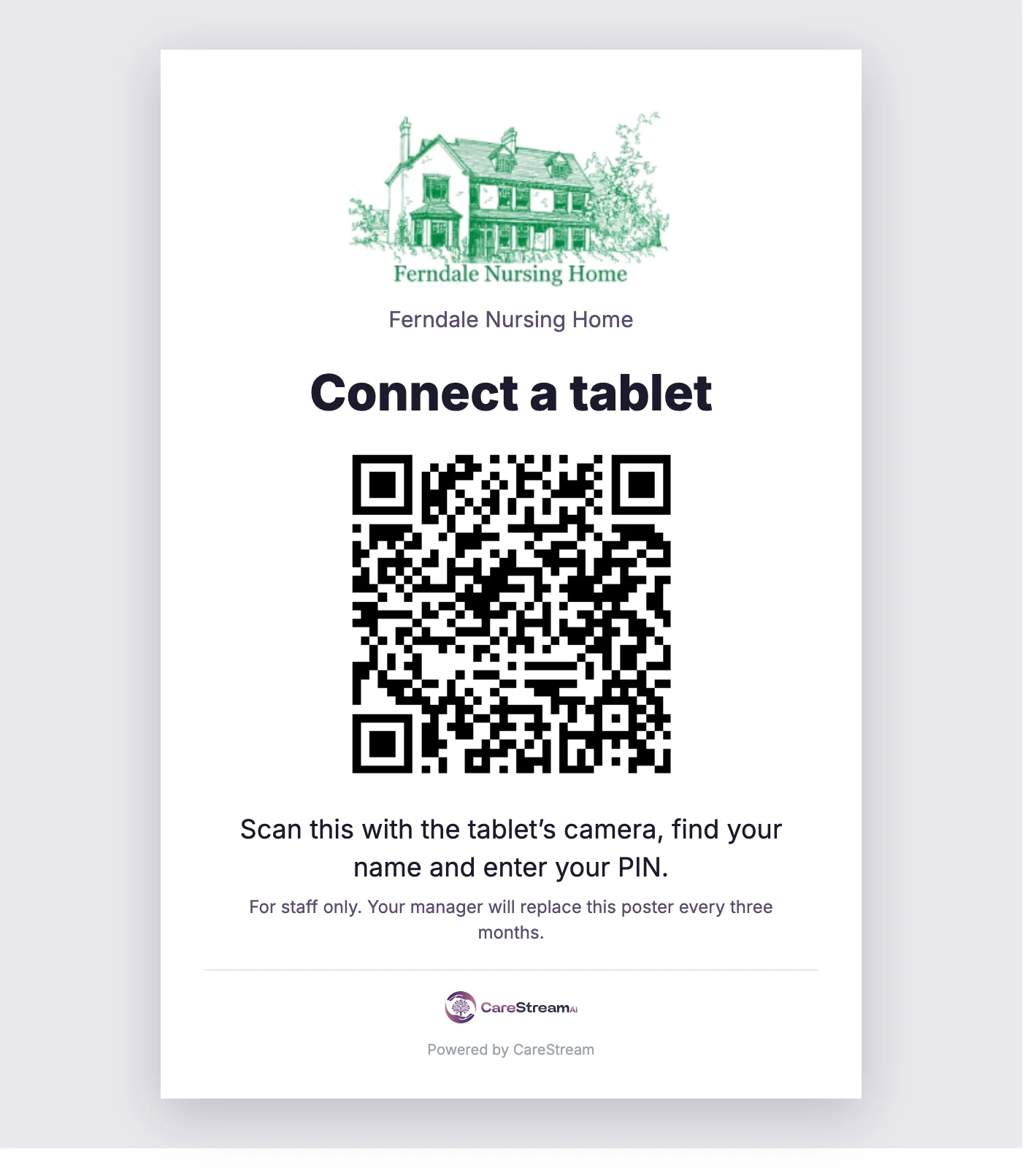
Shared tablets let a service put one or two tablets on the floor for everyone to use, safely. An administrator adds a tablet in a minute: a name and, if they like, where it is kept. They print a Connect a tablet poster, with your organisation logo on it, and put it in a staff area. A carer scans the poster on the tablet, finds their own name and enters their PIN, and the tablet is connected. From then on the tablet shows only a Who's using it? screen. To use anything, a carer picks their name and enters their own four digit PIN, and gets their own hub. When they tap Done, or leave it untouched, the tablet goes back to the Who's using it? screen for the next person. A service can have up to five tablets, and they are not counted as staff seats.
Put a shared tablet in a staff area. Nothing opens on it until a carer chooses their name and enters their own PIN. Then they have their own CareStream hub: chat, This is me, their training, their actions. Ten spare minutes on shift becomes a lesson finished, and every question asked is recorded against the person who asked it.
Registered managers, deputies and training leads in services with a phone ban on the floor, or with one or two tablets shared by the team. Care homes, nursing homes and any service where carers cannot use their own phones at work.
Setting up a tablet, connecting it, disconnecting it, a person starting a session and every PIN action are written to the audit log. Every chat question is recorded against the person and the tablet it was asked on.
The difference it makes day to day
- Carers can use CareStream on the floor without a personal phone.
- Nothing opens on a shared tablet until a carer enters their own PIN. There is no open chat and no resident information on show.
- After the PIN the carer has their own hub: chat, This is me, their training, actions and supervisions. A spare five to ten minutes can be a lesson finished.
- Every chat question is recorded against the person who asked it and the tablet it was asked on.
- A tablet is connected by scanning a printed poster in a staff area and entering a PIN, and it can be disconnected at once from the Staff page.
- Tablets are not counted as staff seats.
How it works.
Set it up once, then it runs itself.
Add a tablet and print the poster
On the Staff page choose Shared tablets, or tick Shared tablet in Add staff member, and give the tablet a name such as Ward 2 tablet and, if you like, where it is kept. Then print the Connect a tablet poster from the same panel. It carries your organisation logo from Settings, a QR code and a short instruction. Scanning it does not sign anyone in, so the poster belongs in a staff area: a carer still has to find their own name and enter their PIN. You choose how often you are reminded to print a new one: monthly, quarterly, half yearly or yearly. A new poster stops the old one connecting new tablets, and tablets that are already connected stay connected.
Connect the tablet
On the tablet, scan the poster, type the first letters of your name, pick yourself and enter your PIN. Choose which tablet it is. You go straight into your own hub. The connect page has no list of staff to browse: you type the first letters of your name, and wrong guesses are limited both per person and per poster.
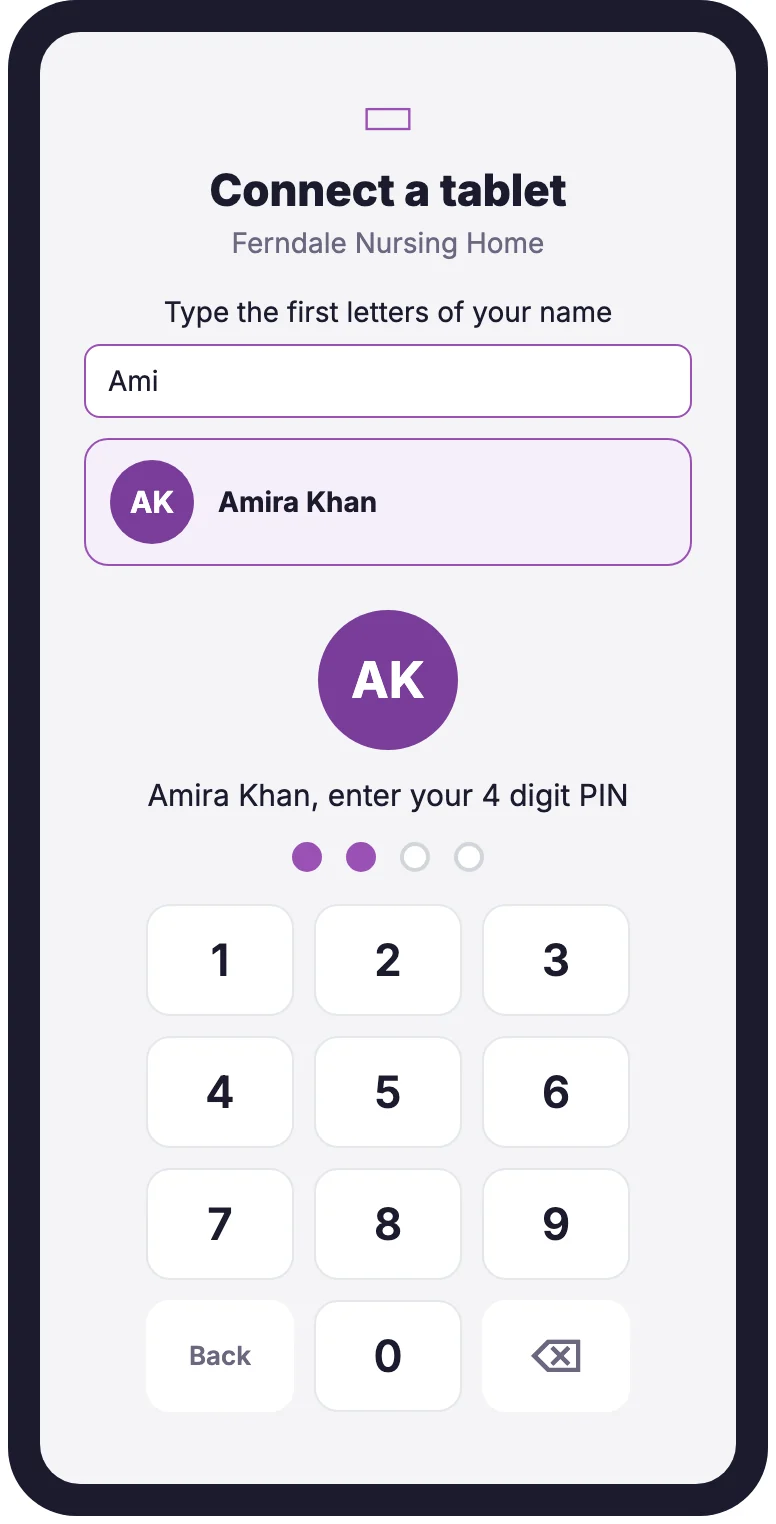
Who's using it?
Between people the tablet shows only Who's using it? Staff type their name or tap their picture, then enter their four digit PIN. Chat, This is me, training and everything else stay closed until the PIN is right. Five wrong tries lock that person out for five minutes.
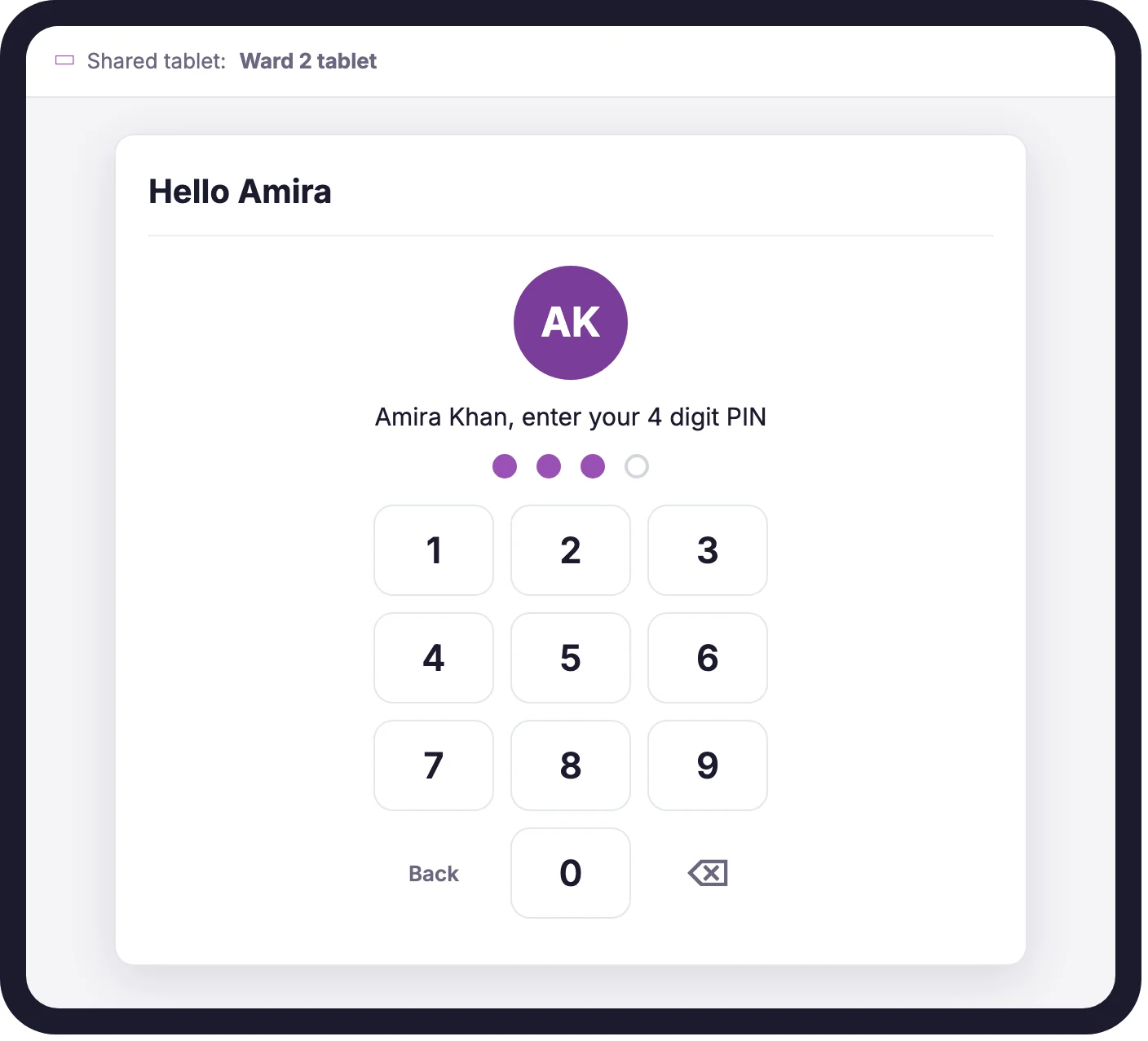
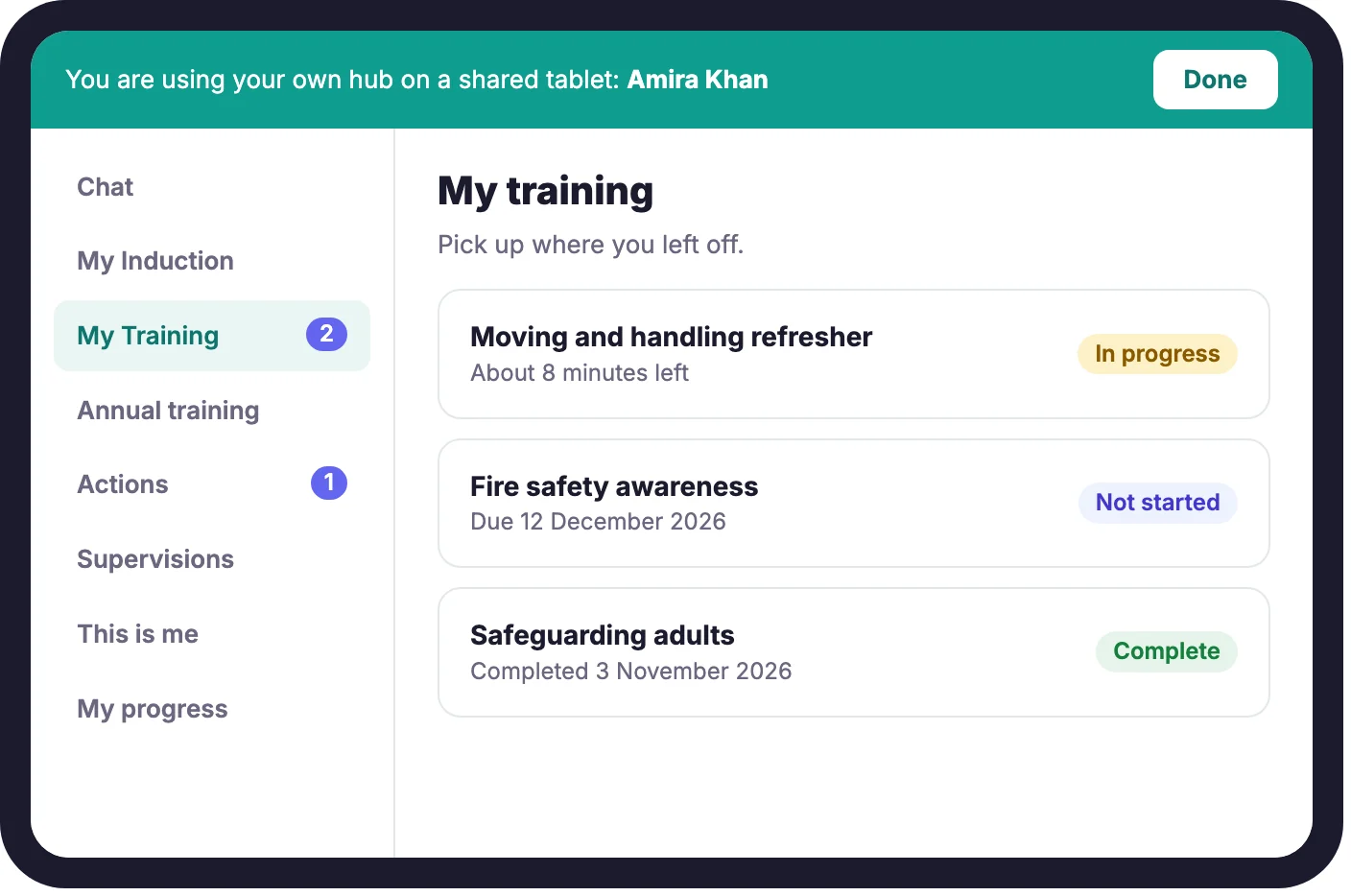
After the PIN the carer has their own CareStream hub, exactly as on their own phone: chat, This is me, their training and annual training, induction, actions, supervisions and progress. Everything they do is recorded as them. An administrator who enters their PIN on a tablet gets an ordinary staff session, so admin screens can never be reached from a shared tablet.
Tap Done and the tablet returns to Who's using it? If nobody touches it, a Still there? prompt appears after four minutes, and after five minutes the session ends by itself. A session can run for up to 45 minutes of continuous use, long enough to finish a lesson.
Each staff member has a random four digit PIN, emailed to them and shown as sent by the administrator. New staff get theirs with their welcome once the service has a tablet. Administrators never see a PIN unless they choose Show PIN, which is recorded. From the three dots menu on the Staff page an administrator can Re-send a PIN, Regenerate it, or Show it, each limited to three times an hour for each person.
Disconnect one tablet, or all of them, from the Staff page, and it stops at once. The Staff page shows each tablet with a green dot when it is connected and when it was last used. A lost or wiped tablet can be reconnected by anyone with the poster and their PIN. Tablets never receive email or push notifications.
- On Starter, Professional and Enterprise
- Up to five tablets, not counted as staff seats
- Nothing opens until a carer enters their own PIN
- Their own full hub after the PIN: chat, This is me, training, actions
- Every chat question recorded against the person and the tablet
- Connected with a printed poster, which also needs a PIN
- Still there? prompt after four minutes, session ends after five untouched
- Disconnect one tablet or all of them at once
Why services use it.
A phone ban should not mean carers cannot get to the answers, the training or the records they need on shift.
Carers get CareStream on the floor without a personal phone, so you can keep your phone policy as it is.
A carer with five to ten spare minutes can pick up where they left off, on the same tablet, with their own progress.
Chat questions are recorded against the person and the tablet, so you can see who asked what.
The tablet is useless without a person's own PIN, locks itself after a few minutes and can be disconnected in one click.
Frequently asked
Which plans include shared tablets?
Starter, Professional and Enterprise. They are not part of the Free plan.
How many tablets can we have?
Up to five. Tablets are not counted as staff seats, so adding one does not use up a licence.
What can someone see on a tablet before they enter a PIN?
Only the Who's using it? screen, which shows staff names and pictures and a PIN pad. There is no open chat and no resident information. The tablet itself is refused everything else by the system, not just hidden on screen.
What happens after a carer enters their PIN?
They get their own CareStream hub: chat, This is me, their training, actions, supervisions and progress, the same as on their own phone. Everything they do is recorded as them.
How long can someone stay signed in?
A Still there? prompt appears after four minutes untouched, and the session ends after five. A session can run for up to 45 minutes of continuous use. Tapping Done ends it straight away.
Do administrators see staff PINs?
No. A PIN is emailed to the staff member. An administrator can choose Show PIN if someone cannot read their email, and that is recorded. Administrators can also Re-send or Regenerate a PIN from the Staff page.
What if a carer forgets their PIN, or guesses wrong?
An administrator can Re-send it, or Regenerate a new one. Five wrong tries lock that person out for five minutes, and Regenerate clears the lockout.
Can agency workers use a shared tablet?
No. Agency workers are not listed on tablets, so a tablet cannot be used by them.
What if a tablet is lost or someone leaves?
Disconnect the tablet from the Staff page and it stops at once. Archiving a staff member removes them from the list on every tablet.
Does CareStream decide our phone or data protection policy?
No. Your service decides its own phone policy and where tablets are kept. CareStream controls who can open what on a tablet, and records what was done.
Explore more features
More of what the CareStream compliance platform does for UK care providers.
Put CareStream on the floor, without a phone.
See how one shared tablet and a PIN for each carer gives your team chat, This is me, training and actions on shift.