Family photos and video messages, so the people they love are always close
A photograph of a wedding day. A granddaughter saying hello on her phone. For a person living with dementia, a familiar face and voice can settle an afternoon in a way that nothing else does, and the people who can give you those things are usually not in the building.
A familiar face and voice, checked before it is shown.
Each resident can have a small collection of photos and short video messages sent by the people who love them. Family and friends open a private link on their phone, add up to five photos or videos, and press Send. Nothing is public and nothing reaches your team until a manager has looked at it and approved it.
A photo can carry a short caption and a note of who is in it. A video message can run for up to a minute and carries a short title. Staff then ask the chat in the Staff Hub, for example "do we have a photo of Tim's wedding?" or "do we have a video from his daughter?", and the matching photos and videos appear under the answer with the resident's name and room number.
This is the practical side of life story work for people living with dementia. It builds a dementia photo album that the whole team can use, without anyone hunting through drawers or phones.
Family photos and video messages let relatives and friends send them through a private link, with no app and no account. You approve every photo and video before anyone on your team can see it, and staff find them in seconds by asking the Staff Hub chat. It is part of the This is me resident profiles, on the Professional and Enterprise plans.
Care homes, nursing homes and other services that support people living with dementia and want families involved, and want new and temporary staff to have something real to start a conversation with.
It is not a video call, and residents do not record messages back. Staff cannot download videos, and the translation is not subtitles built into the video. It helps the manager decide, and staff only see English text if a manager switches it on.
Included on the Professional and Enterprise plans, as part of the This is me resident profiles.
The difference it makes day to day
- A familiar face and voice is available to any carer in seconds, including bank and agency staff who have never met the family.
- Relatives who live far away can take part, in their own time, from their own phone.
- A message in a first language other than English can still be understood and judged by the manager before anyone plays it.
- Staff start a conversation with a real photo or a message from someone the resident loves.
- Nothing is shown until a manager has approved it, so you stay in control of what staff and residents see.
- Gentle email reminders keep new messages coming without anyone chasing by phone.
- When someone dies or moves on, their photos and videos leave the hub at once.
How family photos and video messages work.
You invite family and friends from the resident's record, the same way you invite them to add to a profile. They get a private link by email. After that, everything runs from your Approvals screen and the Staff Hub chat.
Invite family and friends
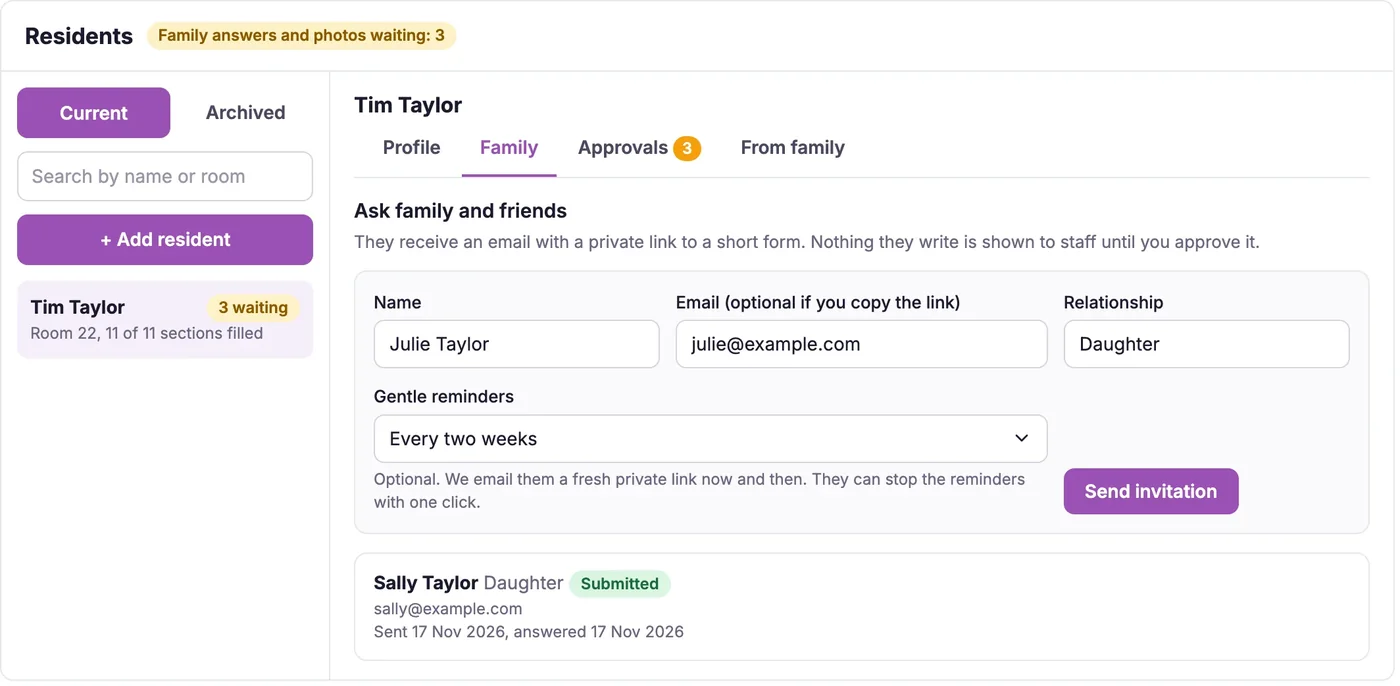
Open the resident, go to the Family tab, and enter a name, an email address and how they know the person. They receive a private link that works for 14 days. There is no account to create and no password. You can resend or cancel it at any time.
They add photos and a short video
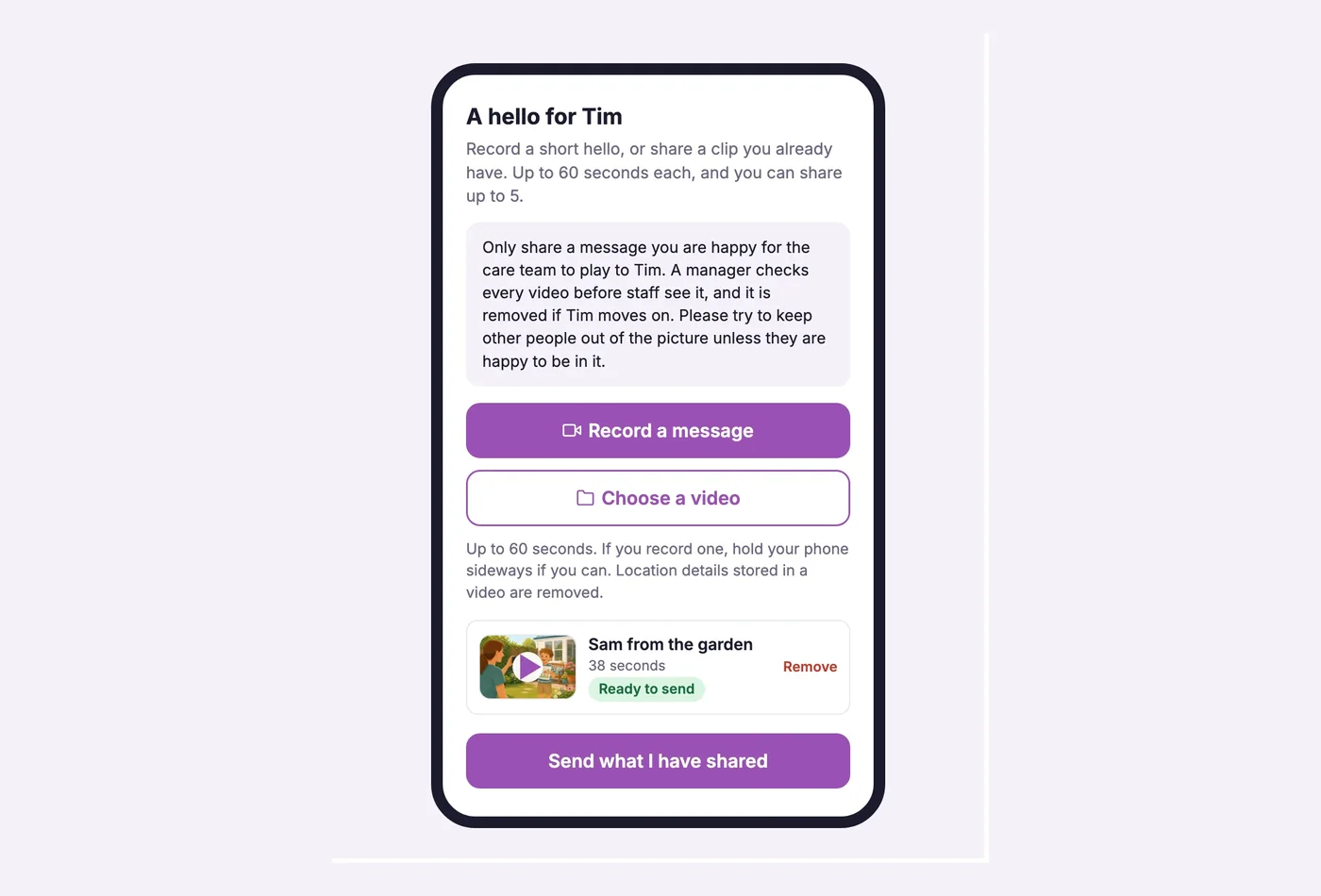
On the link, a relative can add up to five photos or videos. For a video they tap Record a message, which opens the phone camera, or choose one they already have. Each video can be up to 60 seconds. The page shows progress, carries on if the signal drops, and tells them kindly if something goes wrong. They can add a title or caption and remove anything before they press Send. If a relative speaks in a language other than English, the page tells them the speech is turned into text so a manager can understand it.
You approve each one
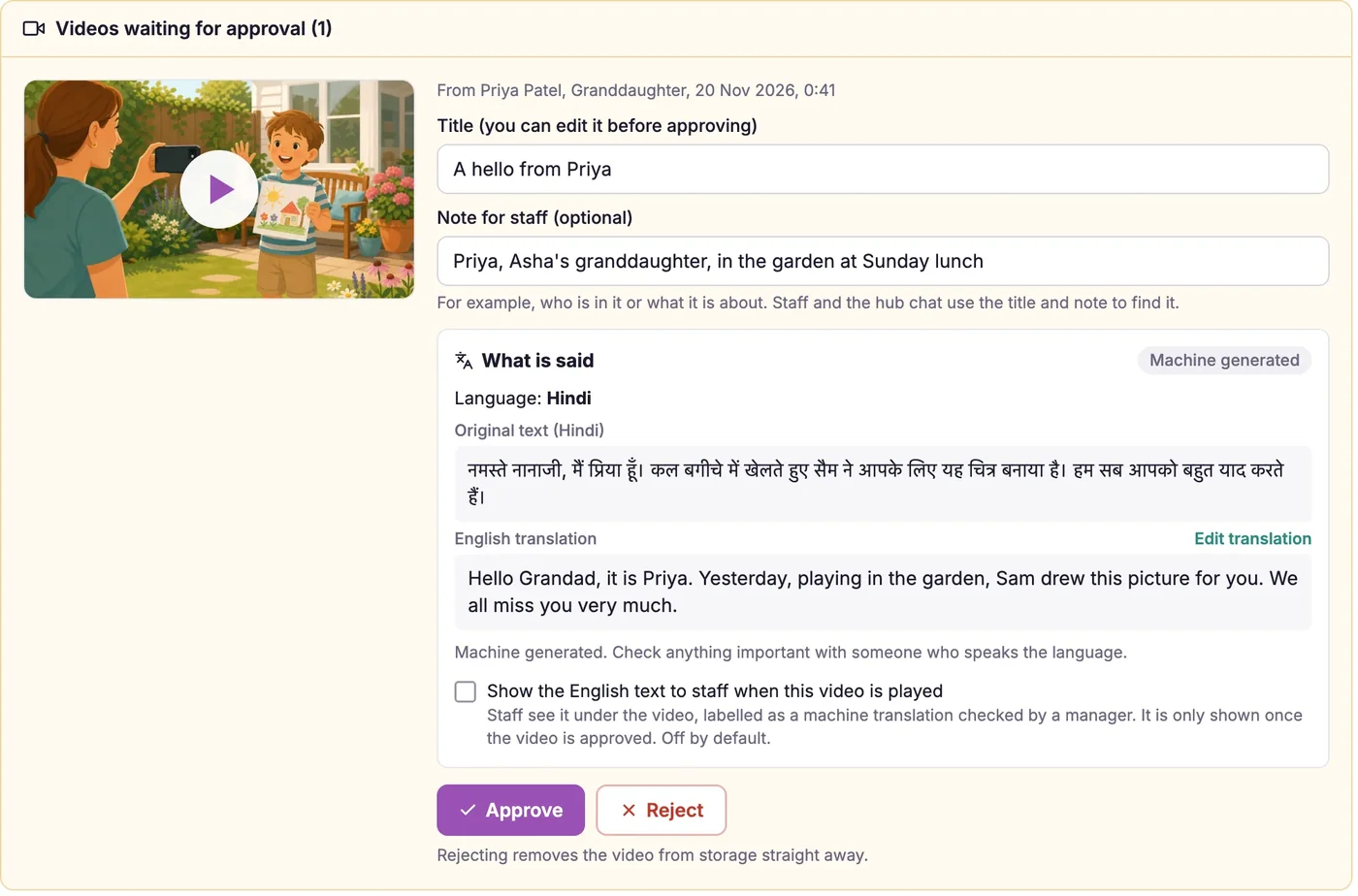
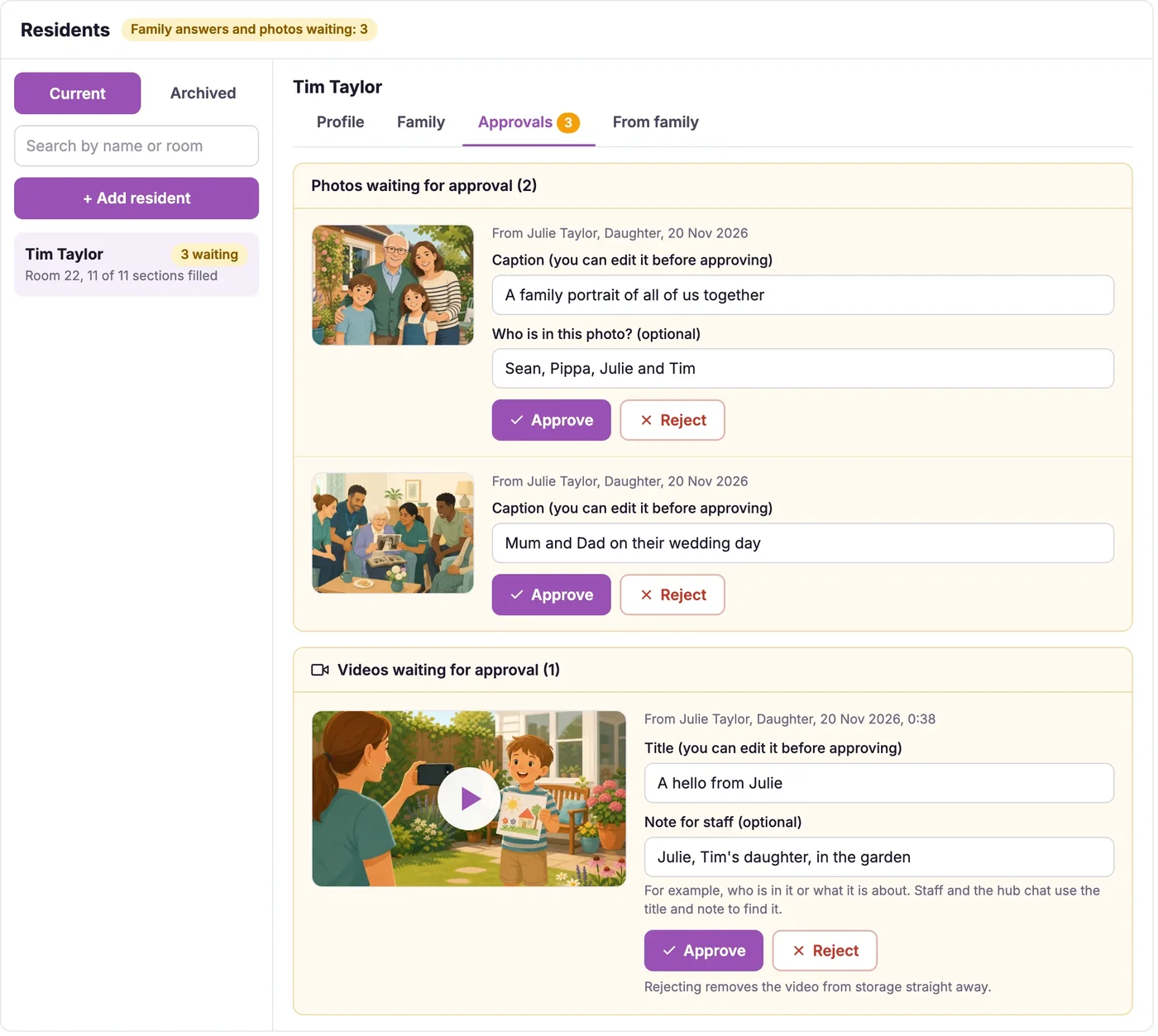
Photos and videos wait on the Approvals tab. Preview each one, edit the caption or title, then approve or reject it. A rejected file is deleted straight away. You can also add photos and videos yourself from the resident record. Approved items from family also appear on the From family tab, under the name of the person who sent them.
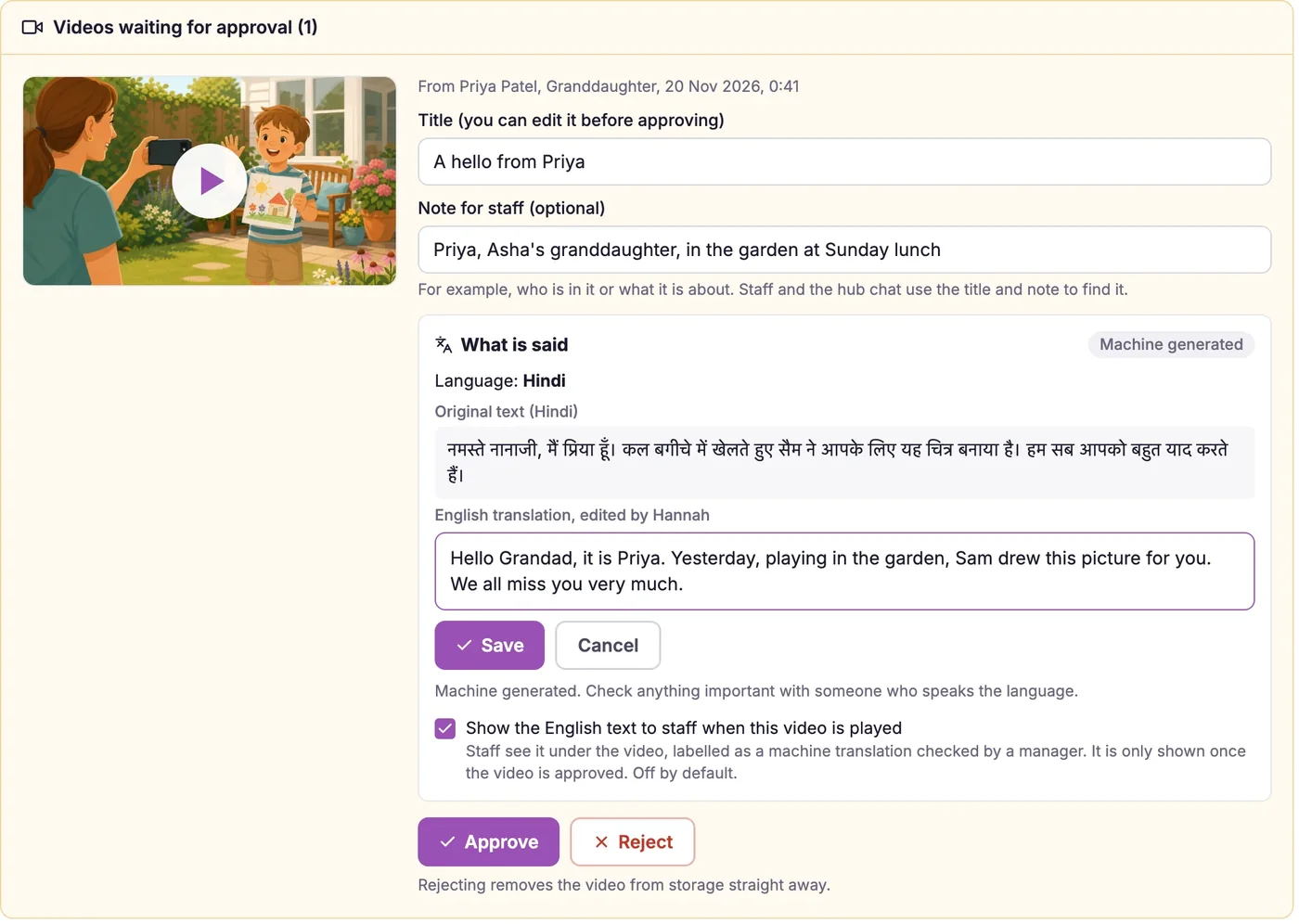
If a video is in another language, you can read what is being said before you approve it. On the Approvals screen, a What is said panel shows the language that was spoken, the original words and an English translation. It is made automatically and labelled as machine generated, so check anything important with someone who speaks the language. You can edit the translation. If you choose, staff can see the English text under the video when it is played, but only once the video is approved, and it is off unless you switch it on. The assistant does not use it.
In the Staff Hub, the This is me chat answers questions about photos and videos from their captions and titles, and shows them under the answer, with the resident's name and room number. Tap a photo to see it larger. A video opens on its own, with nothing else on the screen. Each play is logged, and managers can see recent plays on the resident record.
On the Family tab you can ask a relative, by email, to add something new: weekly, fortnightly or monthly, on the day you prefer. Each reminder has a fresh private link and a Stop these reminders link. After three reminders without a reply they stop and a manager is told. Reminders are off until you switch them on.
Photos and videos are kept in private storage and shown only to signed in staff of your service, through links that last for minutes. The assistant works from captions and titles only. It never looks inside a picture or a video. When someone dies or moves on, their photos and videos leave the hub at once and any waiting for approval are deleted. Approved files are kept privately for the retention period, like the written profile, and then deleted with it. Any written words made from a video are deleted with it.
- Up to five photos or videos per family link, with up to 60 seconds for each video.
- Every photo and video needs a manager's approval before staff see it.
- Staff ask the chat and the matching photos and videos appear under the answer, with name and room number.
- Videos are processed to play on any phone, tablet or computer, and location details are removed.
- In another language? A manager can read the words and an English translation before approving. It is machine generated, labelled and editable.
- The assistant reads captions and titles only. It never watches or describes a photo or video.
- Gentle reminders weekly, fortnightly or monthly, with a stop link in every email.
- Professional and Enterprise plans.
Why it works.
It is built for busy shifts and for families who are not in the building.
Family use a private link on their phone. There is nothing to install and no password to forget.
Every photo and video waits for your approval, and anything unsuitable is rejected and deleted at once.
Staff do not browse folders. They ask the chat for a photo or a message and it appears under the answer.
Short-lived private links only, shown to your signed in staff, and gone from the hub the moment someone moves on.
Frequently asked
Can family and friends send video messages to a care home resident?
Yes. A relative opens a private link on their phone, records a short message of up to 60 seconds or chooses a video they already have, adds a title and presses Send. A manager approves it before any staff can see it.
How do staff show a video message to a resident?
In the Staff Hub, a carer opens the This is me chat and asks for the person, for example "do we have a video from his daughter?". The video appears under the answer with the resident's name and room number. Tapping it plays it on its own.
Does a manager have to approve photos and videos first?
Yes. Every photo and video sent by family waits on the Approvals tab. You can preview it, edit the caption or title, then approve or reject it. Rejected files are deleted at once. Photos and videos you add yourself are approved straight away.
Can a video message in another language be translated?
Yes. Before you approve a video, a What is said panel shows the language spoken, the original words and an English translation, made automatically and labelled as machine generated. You can edit the translation, and you can choose to show the English text to staff under the video once it is approved. Check anything important with someone who speaks the language.
How long can a video message be?
Up to 60 seconds, and up to five photos or videos per family link. Videos are converted so they play on any phone, tablet or computer, and location details are removed.
Is this a dementia photo album for the whole team?
In practice, yes. Approved photos with their captions give every carer, including bank and agency staff, something real to start a conversation with. It sits alongside the written This is me profile, which is the heart of life story work for people living with dementia.
Can the assistant describe what is in a photo or video?
No. It only reads the captions, titles and notes that people have written, so it can tell staff that a photo or a video exists and what it is called, but it never looks inside one.
How do the gentle reminders work?
You can ask a family contact, by email, to add something new every week, fortnight or month, on the day you prefer. Each email carries a fresh private link and a Stop these reminders link. After three reminders without a reply they stop and a manager is told. They are off until you switch them on.
What happens to photos and videos when someone dies or moves on?
They leave the Staff Hub at once and any waiting for approval are deleted. Approved files are kept privately for the retention period, like the written profile, and then deleted with it.
Which plans include family photos and video messages?
The Professional and Enterprise plans, as part of the This is me resident profiles. See the pricing page for the plans.
Explore more features
More of what the CareStream compliance platform does for UK care providers.
Bring families into the picture.
Let relatives send the photos and messages only they have, and put them in your team's hands the moment they are needed.