Display Screen Equipment (DSE) training that gets your team CQC-ready
- CQC-aligned, mapped to the Care Certificate framework
- Completed in the hub in over 60 languages
- A certificate for every staff member, for your CQC evidence
- A wrong answer triggers a follow-up lesson, so gaps are closed
No subscription needed. Bulk discounts from 10+ licences.
From £25.99 per staff member, one-off. No subscription needed.
Trusted by UK care providers
Specialists in the technology behind it all
The same technology behind the world's best products powers CareStream, so your team's display screen equipment (dse) training stays accurate, always up to date with the latest guidance, and is delivered in over 60 languages.
What is DSE and Why It Matters
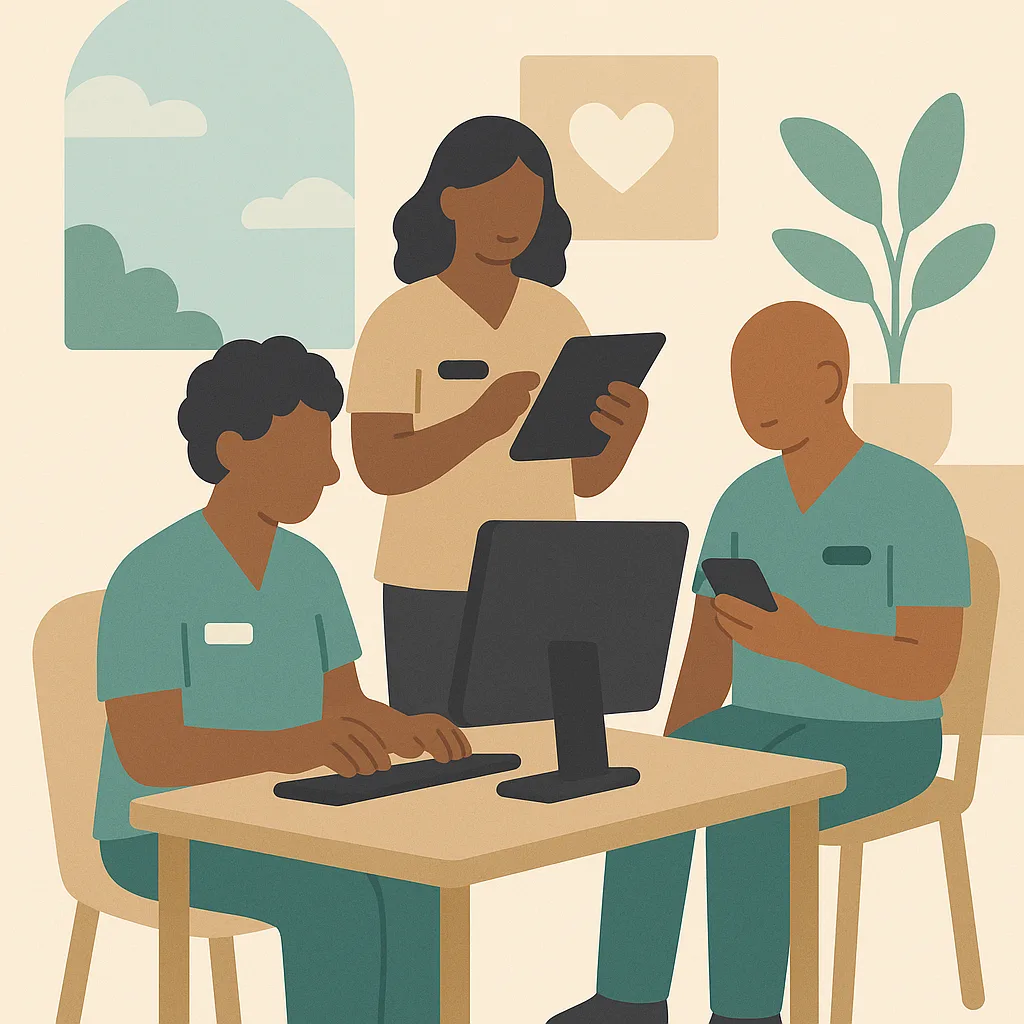
Display Screen Equipment means any screen you use for work, including desktop computers, laptops, tablets, and smartphones. In care work you use DSE for recording care notes, checking care plans, medication records, and communicating with colleagues.
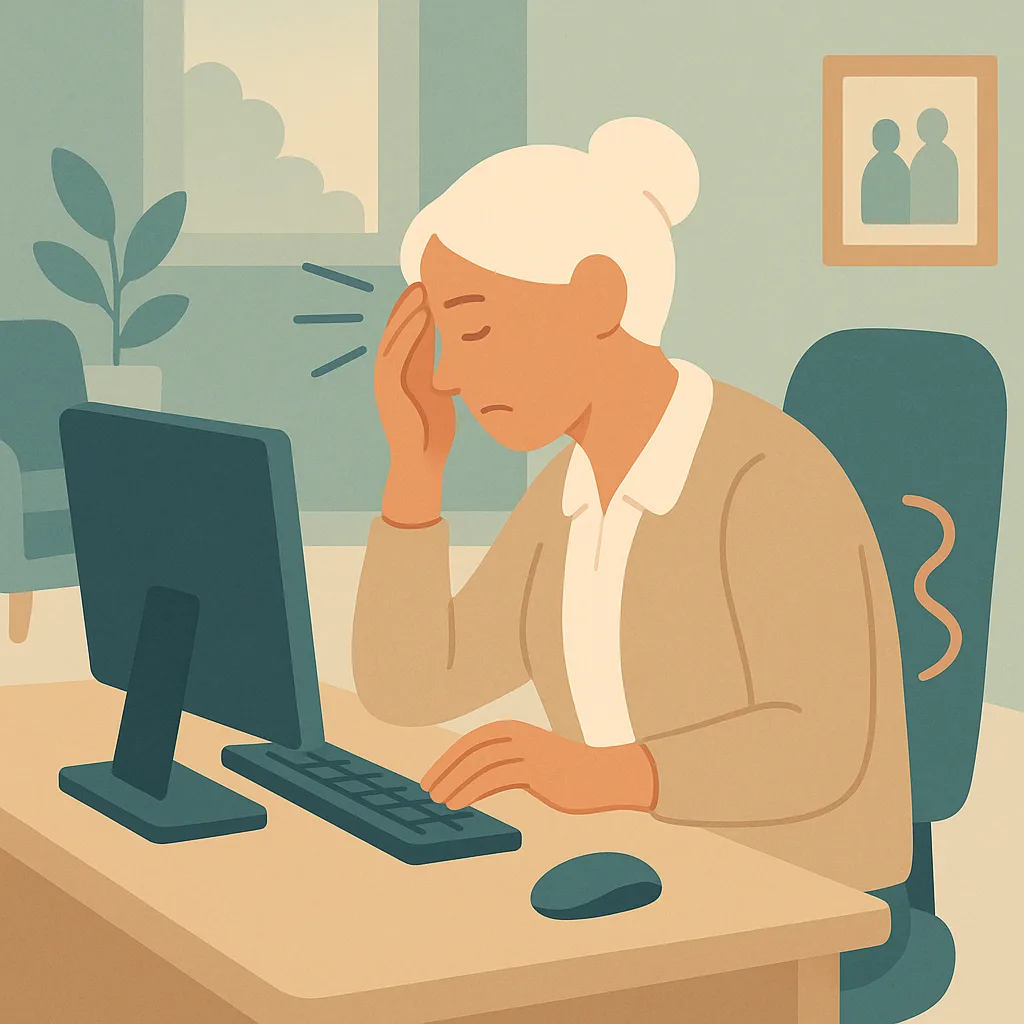
Using DSE incorrectly or for long periods without breaks can cause eye strain, headaches, neck pain, back pain, and repetitive strain injuries. These problems develop gradually but can become serious if ignored.
Which of the following is considered Display Screen Equipment in care work?
In the hub, a wrong answer sends the staff member a short follow-up lesson and a fresh question on the same point. They close the gap before they can finish the module, and every attempt is recorded for your CQC evidence.
That is how the training works. Give your whole team the full Display Screen Equipment (DSE) module.
Avg. Duration
About 35 minutes
Certificate
For every staff member
Available Languages (60+)
Course Published by

A clear, practical grounding in display screen equipment (dse).
This training covers how to use computers, tablets, and screens safely in your daily work at the care setting. You will learn how to set up your workstation correctly, recognise signs of strain or discomfort, and know what support is available. Proper DSE use protects your health and helps you work comfortably and effectively.
By the end, your staff will be able to:
- Identify the main health risks associated with prolonged DSE use in care work
- Describe how to set up a workstation correctly to reduce strain and discomfort
- Recognise early signs of DSE related problems and know when to report them
- Explain your responsibilities and the care setting's responsibilities under DSE safety requirements
- Apply correct posture and break strategies when using computers or tablets during shifts
A closer look at the display screen equipment (dse) module.
The module is built in short, practical sections. Each one teaches a part of the topic, then applies it to a real care scenario and checks understanding before moving on.
What is DSE and Why It Matters
Display Screen Equipment means any screen you use for work, including desktop computers, laptops, tablets, and smartphones. In care work you use DSE for recording care notes, checking care plans, medication records, and communicating with colleagues. Using DSE incorrectly or for long periods without breaks can cause eye strain, headaches, neck pain, back pain, and repetitive strain injuries. These problems develop gradually but can become serious if ignored.
Common DSE Health Risks
Regular DSE use can cause several health problems if your workstation is not set up correctly. Eye problems include tired eyes, temporary blurred vision, and headaches from screen glare or poor lighting. Muscle and joint problems include neck pain, shoulder tension, back pain, and arm or wrist discomfort from poor posture or repetitive movements. Fatigue and stress can result from prolonged concentration and uncomfortable working positions. All these problems are preventable with correct setup and good working habits.
Setting Up Your Workstation Correctly
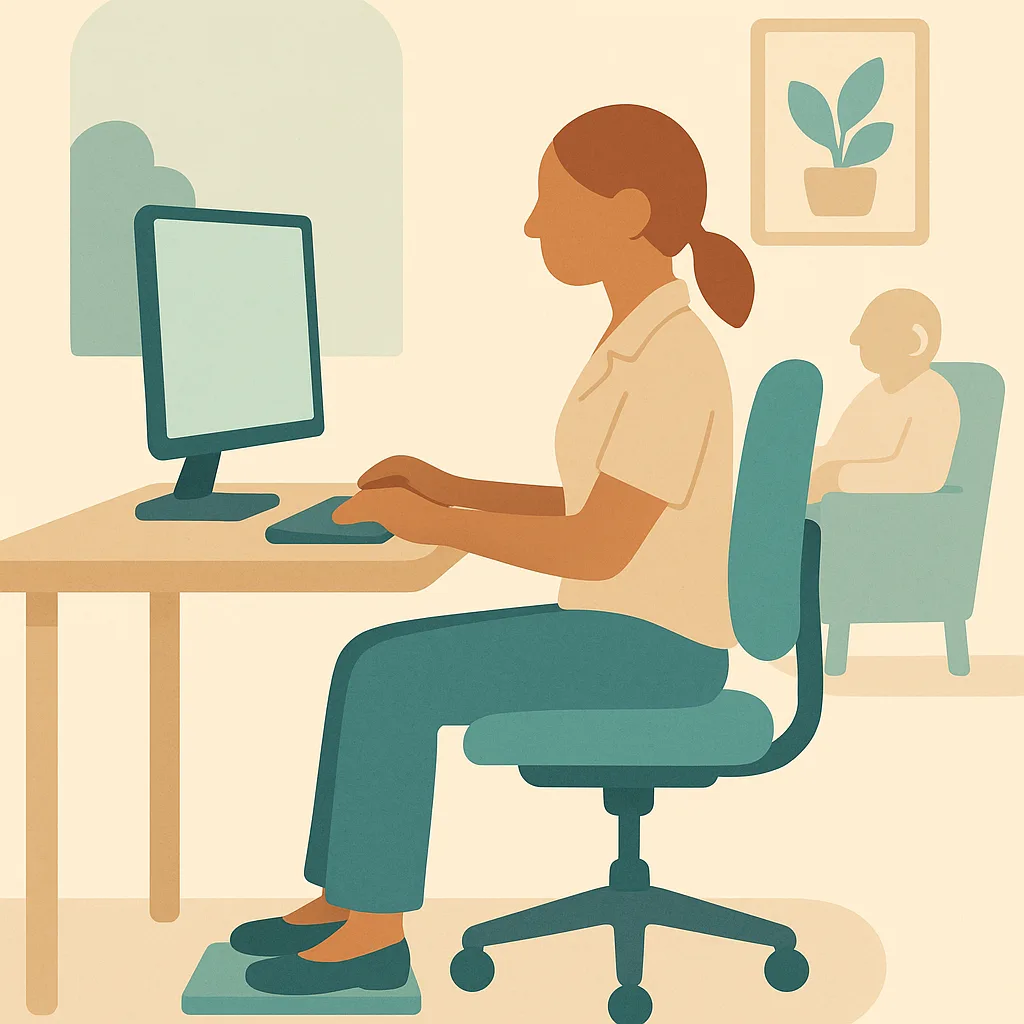
A correctly set up workstation prevents most DSE problems. Your chair should support your lower back with your feet flat on the floor or footrest. Your screen should be at arm's length away, with the top of the screen at or just below eye level. Your keyboard should be directly in front of you with your wrists straight when typing, not bent up or down. Your mouse should be close to you and at the same level as your keyboard. Ensure good lighting without glare on your screen, and position your screen to avoid reflections from windows or lights.
Good Posture and Working Habits
Good posture means sitting upright with your back supported, shoulders relaxed, and arms at your sides with elbows at about 90 degrees. Your wrists should be straight and level when typing, not bent. Avoid slouching, leaning forward, or twisting to see the screen. Take regular breaks from screen work, ideally a short break every 30 to 60 minutes to look away from the screen, stretch, and move around. Even standing up briefly or looking into the distance helps rest your eyes and muscles. Vary your tasks during the day when possible to avoid long continuous periods at the screen.
Your Rights and Responsibilities
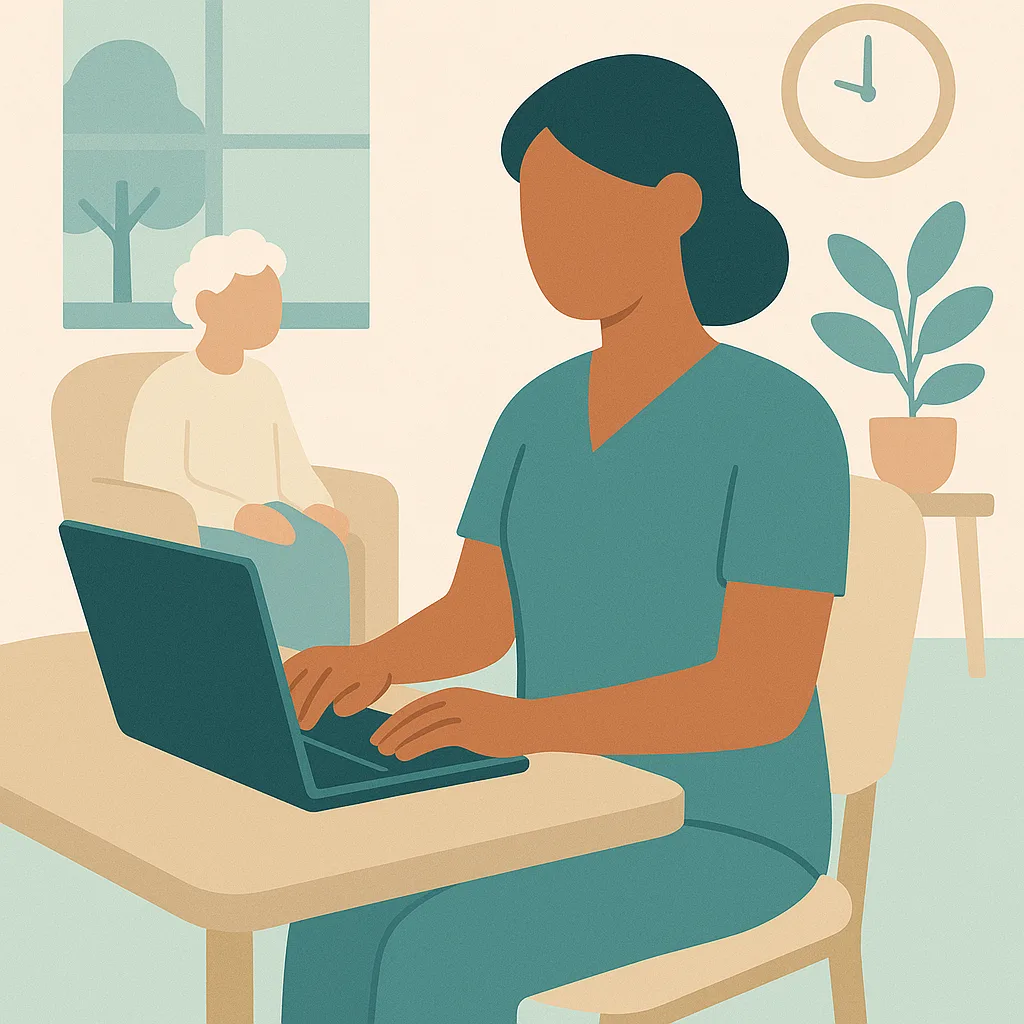
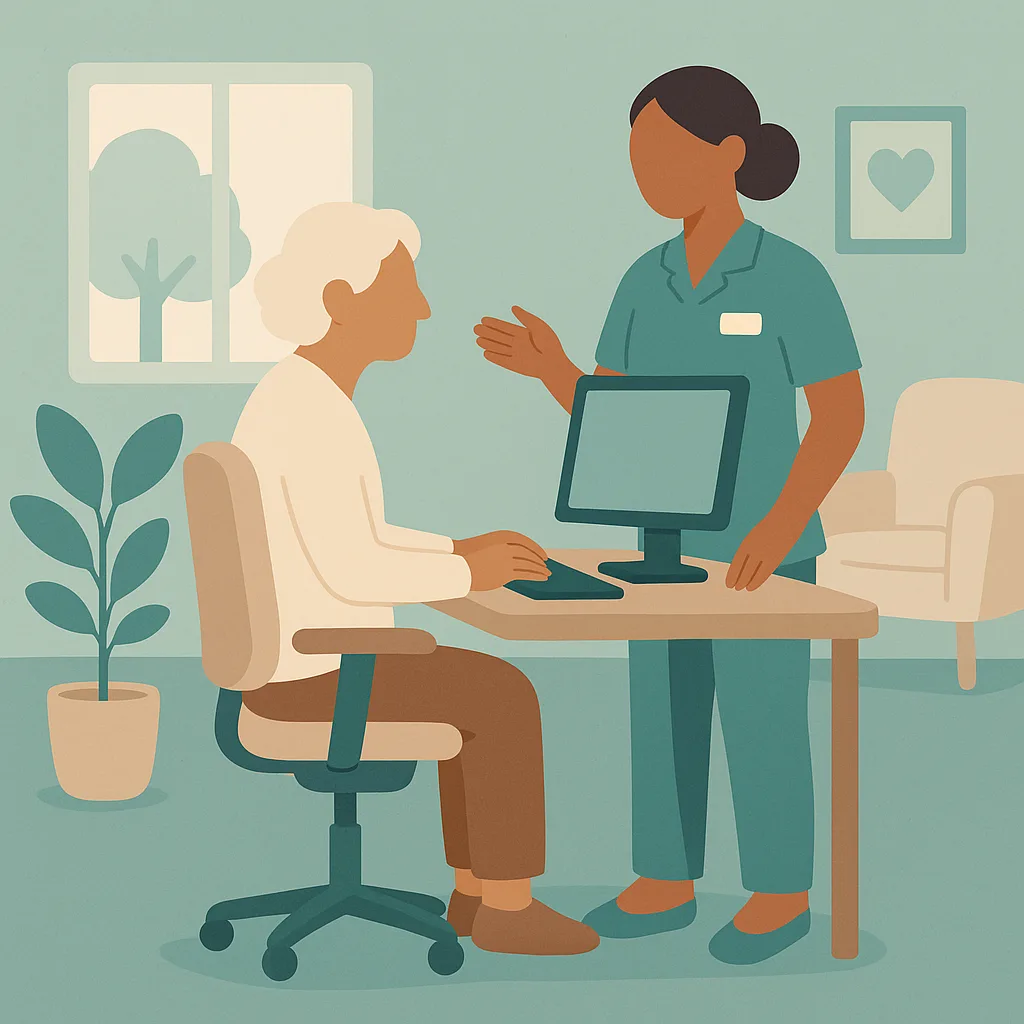
Under health and safety law, the care setting must assess DSE workstations and reduce risks for staff who use screens regularly. You have the right to request a workstation assessment if you use DSE as a significant part of your work. the care setting must provide adjustable chairs, suitable equipment, and information about safe DSE use. Your responsibilities include following the training you receive, using equipment correctly, taking regular breaks, and reporting any problems or discomfort early. You should also tell your supervisor if you have any existing health conditions that might be affected by DSE work.
Using Mobile Devices and Tablets Safely
Many care tasks now involve tablets or smartphones for recording care in residents' rooms. These devices present different challenges because they are often used while standing or moving. When using a tablet, avoid holding it in one position for long periods. Support the device on a surface when possible rather than holding it constantly. Avoid bending your neck down to look at a handheld device for extended periods as this strains your neck. Hold devices at a comfortable height and angle. Take breaks between residents to rest your hands and eyes. If you do significant amounts of work on a tablet, consider using a stand or case that props it up.
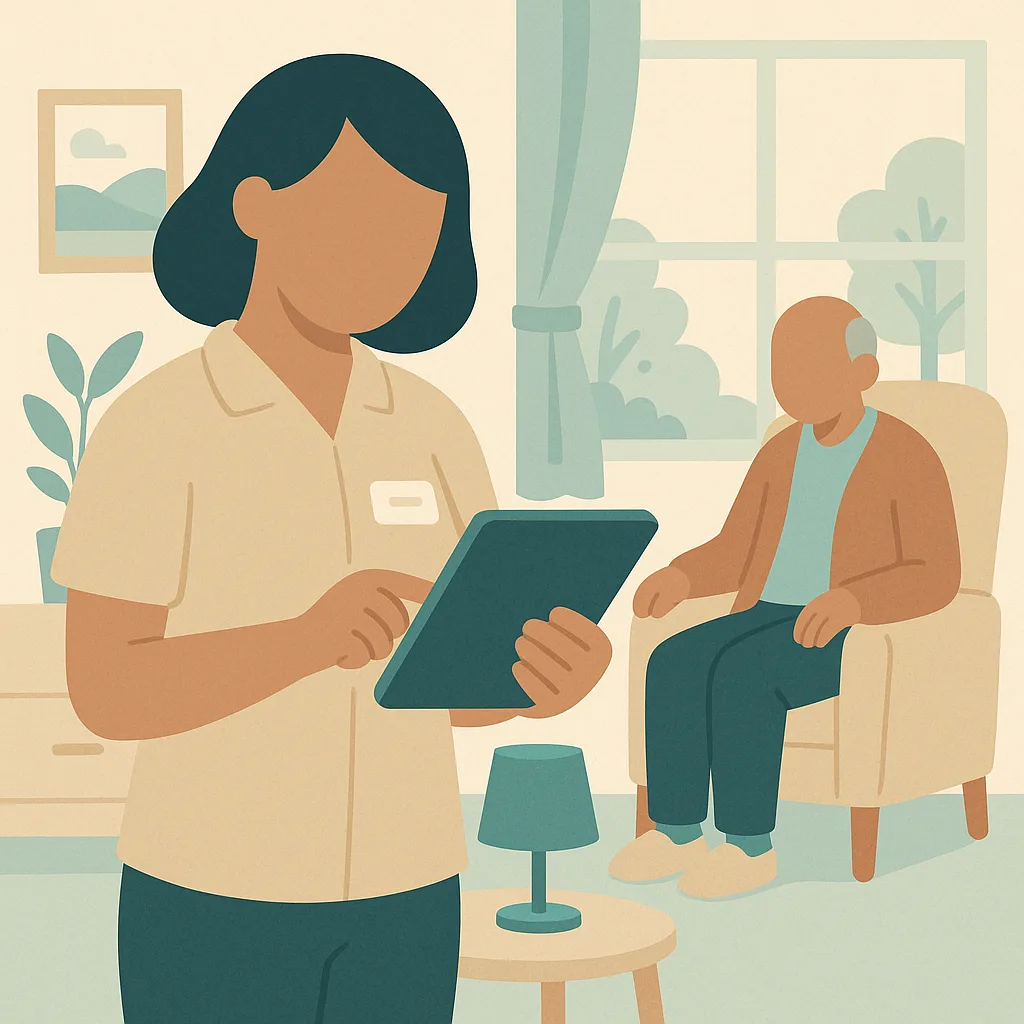
The things your team must remember.
- Display Screen Equipment includes all computers, laptops, tablets, and smartphones you use for work tasks
- Poor DSE setup or prolonged use without breaks can cause eye strain, headaches, neck pain, back pain, and repetitive strain injuries
- Set up your workstation correctly with screen at eye level, keyboard close, chair adjusted, and good lighting without glare
- Sit with good posture, keep wrists straight when typing, and take regular short breaks every 30 to 60 minutes
- You have the right to request a workstation assessment if you use DSE regularly, and you must report any discomfort or problems early
- When using tablets or mobile devices, avoid holding them for long periods and position them to prevent neck and hand strain
Not a slideshow once a year. Training that sticks.
CareStream delivers display screen equipment (dse) training in the hub your team already uses, grounded in best practice and your own policies, so it fits your care setting and not a generic template.
Short teaching sections and a real care scenario, then an assessment that checks understanding.
Staff complete it in over 60 languages, while your records stay in English.
A wrong answer triggers a short follow-up lesson and a fresh question, so the gap is closed.
Automatic reminders at 90, 30 and 7 days, with a live compliance dashboard.
From your dashboard to your team, in the CareStream hub.
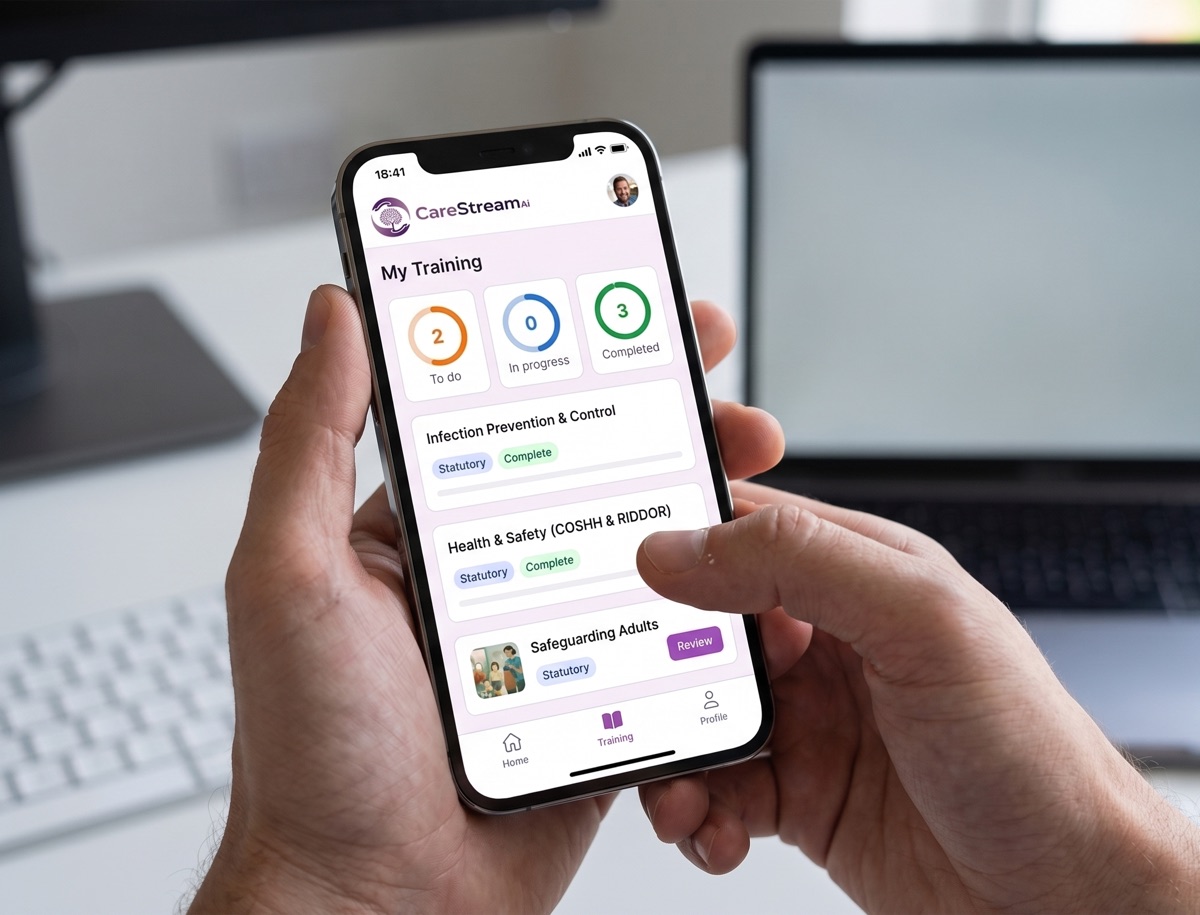
Training is delivered in the hub each staff member logs into. You allocate the modules, they complete them in their own language, and you get the completion records and certificates for your CQC evidence, with any gaps closed by automatic follow up training.
Assign Display Screen Equipment (DSE) to each staff member in seconds. No course builder and no setup for each person.
Staff work through the module on any device, in over 60 languages, teaching then checking understanding. A wrong answer sends a short follow up lesson.
See live completion status and a certificate for every person, ready as evidence for CQC.
Any step, in their language, in one tap.
Care teams are diverse and training should not leave anyone behind. On any lesson or question, a staff member taps the language button and the whole step flips into the language they think in. They understand it properly, and your records stay in English.
- One tap flips any lesson or question into their language, instantly.
- Over 60 languages, with no setup and no separate versions to manage.
- Completions and certificates stay in English for your CQC evidence.
Try the language buttons in the preview above.
Built for real learning, not box ticking
Every CareStream course goes further than a lesson and a quiz. These features come as standard on every course, giving your staff a richer way to learn and giving you the evidence to prove it.
Every course is built on recognised UK guidance and cites its sources, from NICE and Skills for Care to the NHS and the legislation itself.
A plain English glossary of the technical terms in each course. A simple way to support every learner, including staff with English as a second language.
A quick knowledge check before the lesson is compared with the final assessment, so every certificate comes with evidence of how much the course actually taught.
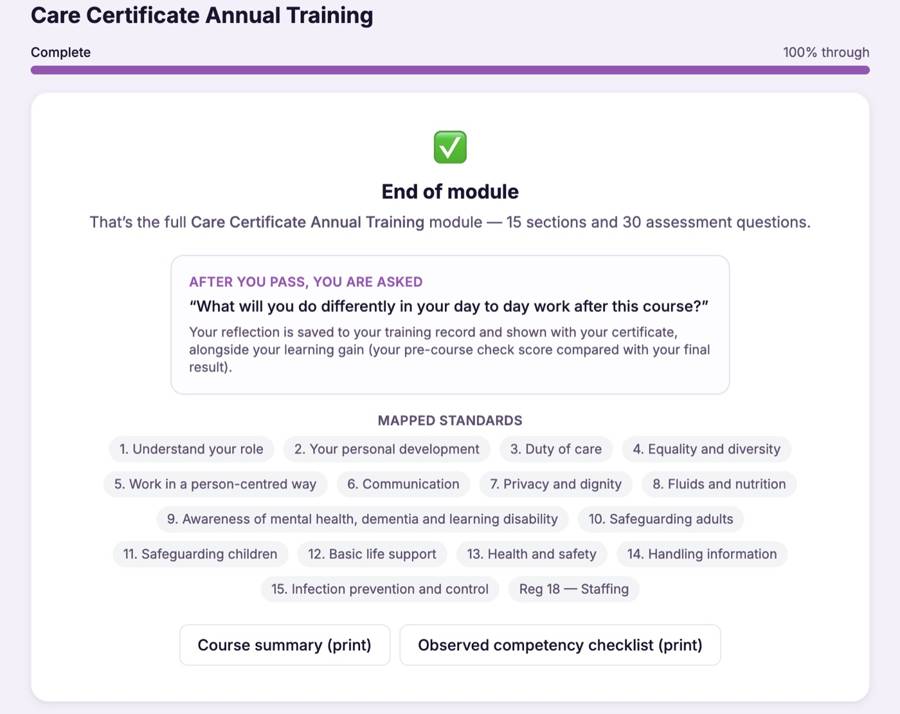
After passing, staff record what they will do differently in their day to day work. Their reflection is saved to their training record and shown with their certificate.
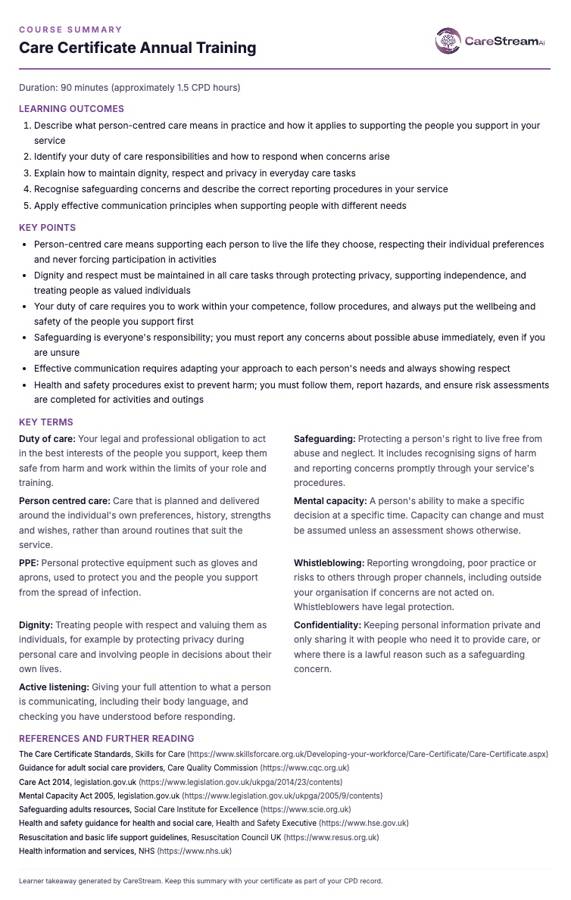
A printable one page takeaway of the outcomes, key points and key terms. Perfect for staff files, supervision conversations and the staff room wall.
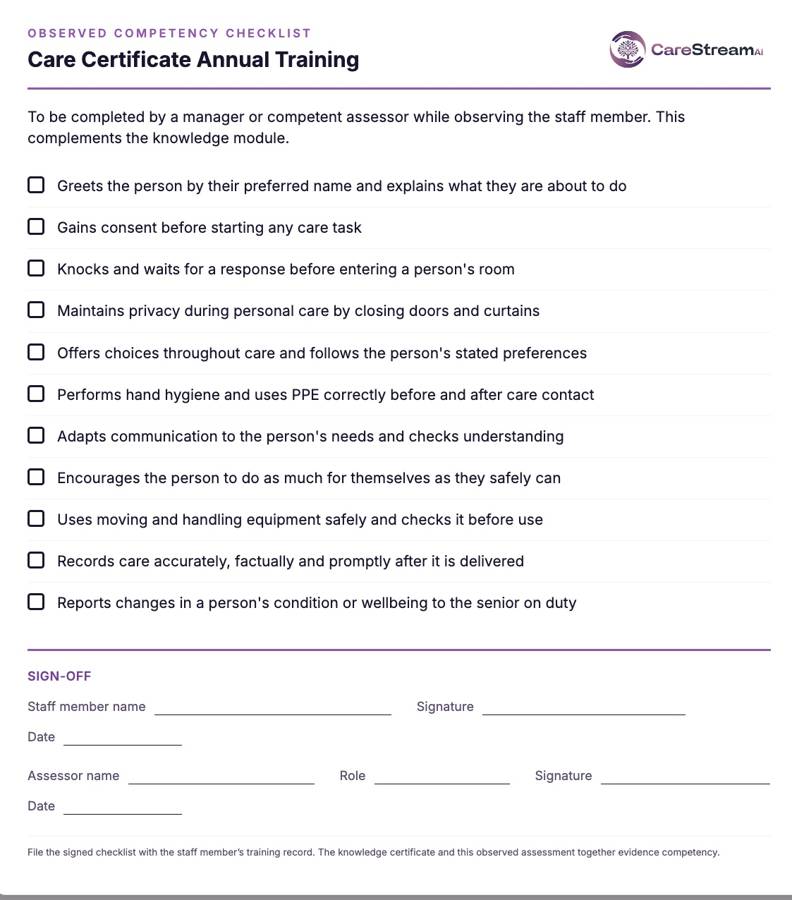
A printable checklist for managers to confirm skills in practice, with a sign off section. It completes the picture beyond the knowledge assessment.
Wrong answers become lessons, not failures
Most e learning marks an answer wrong and moves on. CareStream does not. Every wrong answer triggers an automatic follow up loop that teaches the point again and rechecks it, so no knowledge gap is left behind.
A wrong answer immediately opens a short lesson explaining the point, so the gap is closed there and then.
A fresh question on the same point checks the lesson has landed. The loop repeats until it has.
Staff move on to the next module and their certificate once they genuinely know the answer, not just after one lucky guess.
Why choose CareStream?
Training built for the care sector, delivered the way busy teams actually learn.
- 90+ care-specific training courses
- Bitesize, engaging lessons your staff actually finish
- Mapped to the Care Certificate & CQC standards
- Available in 60+ languages
- Instant certificate on completion
- Flexible learning, anytime, on any device
- Content kept up to date with UK care regulations
- Time to complete: ~35 min
Frequently asked questions.
Is Display Screen Equipment (DSE) training mandatory in care settings?
How often should staff complete Display Screen Equipment (DSE) training?
Can CareStream deliver Display Screen Equipment (DSE) training in other languages?
Does the training include an assessment?
More training your team may need
More mandatory and role-specific training CareStream delivers to your team, in the hub, in any language. Add any of these to your basket.
 Annual Certificate
General Health & Safety Awareness
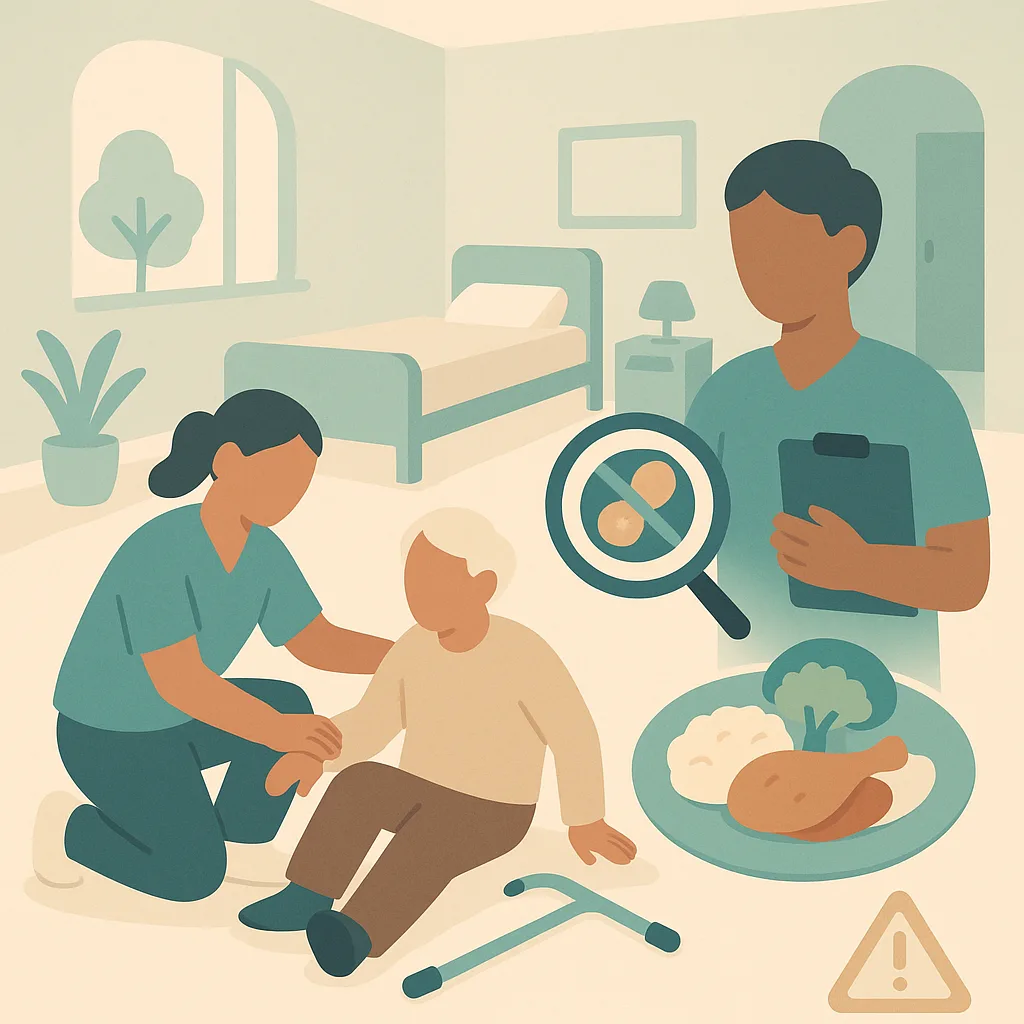
This annual refresher covers essential health and safety practices you use every day in our home. You will review how to prevent and respond to falls, manage food allergies safely, and maintain a safe environment for residents and staff. The training is based on our own policies and procedures.
Bulk discounts from 10+ licences
 Annual Certificate
COSHH (Control of Substances Hazardous to Health)
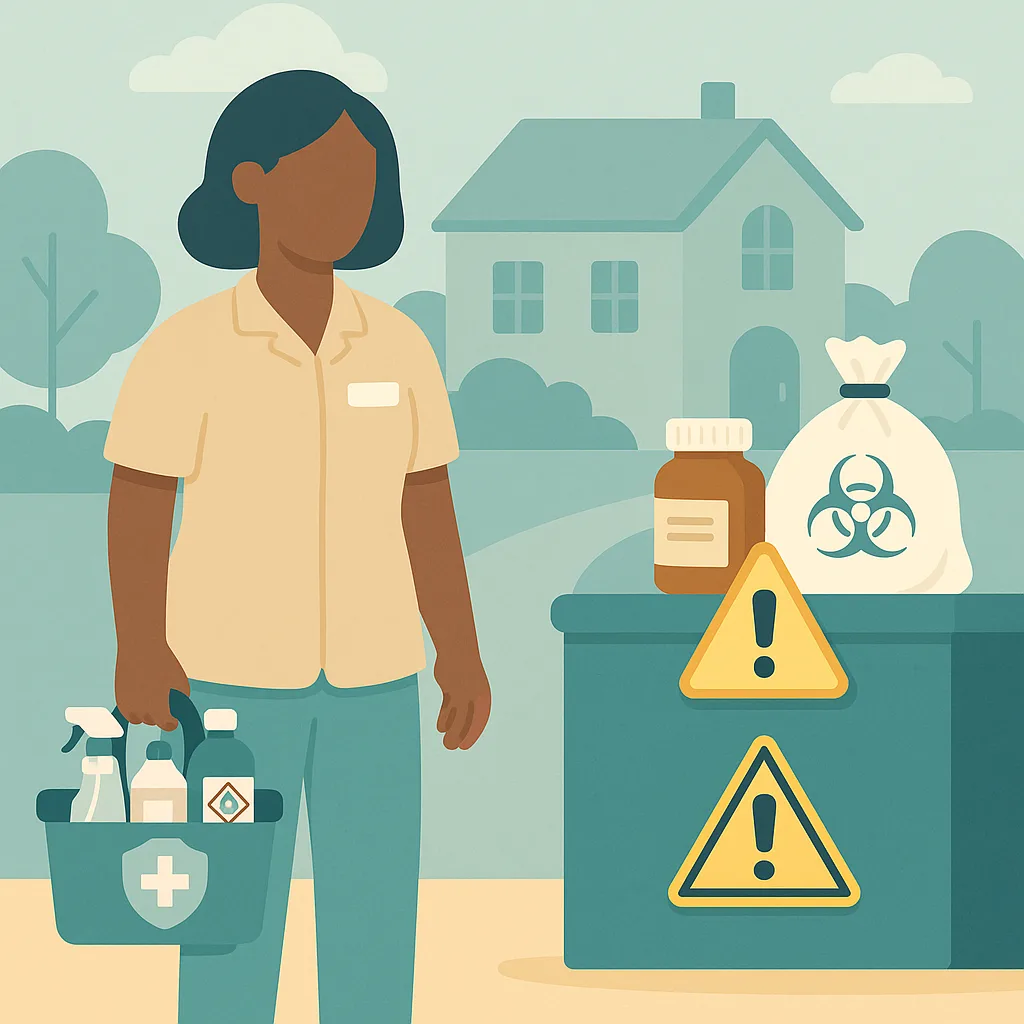
This training covers how to safely handle, store and dispose of hazardous substances in our home, including cleaning chemicals, medications and clinical waste. You will learn our procedures to protect yourself, residents and colleagues from harm. Understanding COSHH is essential for maintaining a safe environment every day.
Bulk discounts from 10+ licences
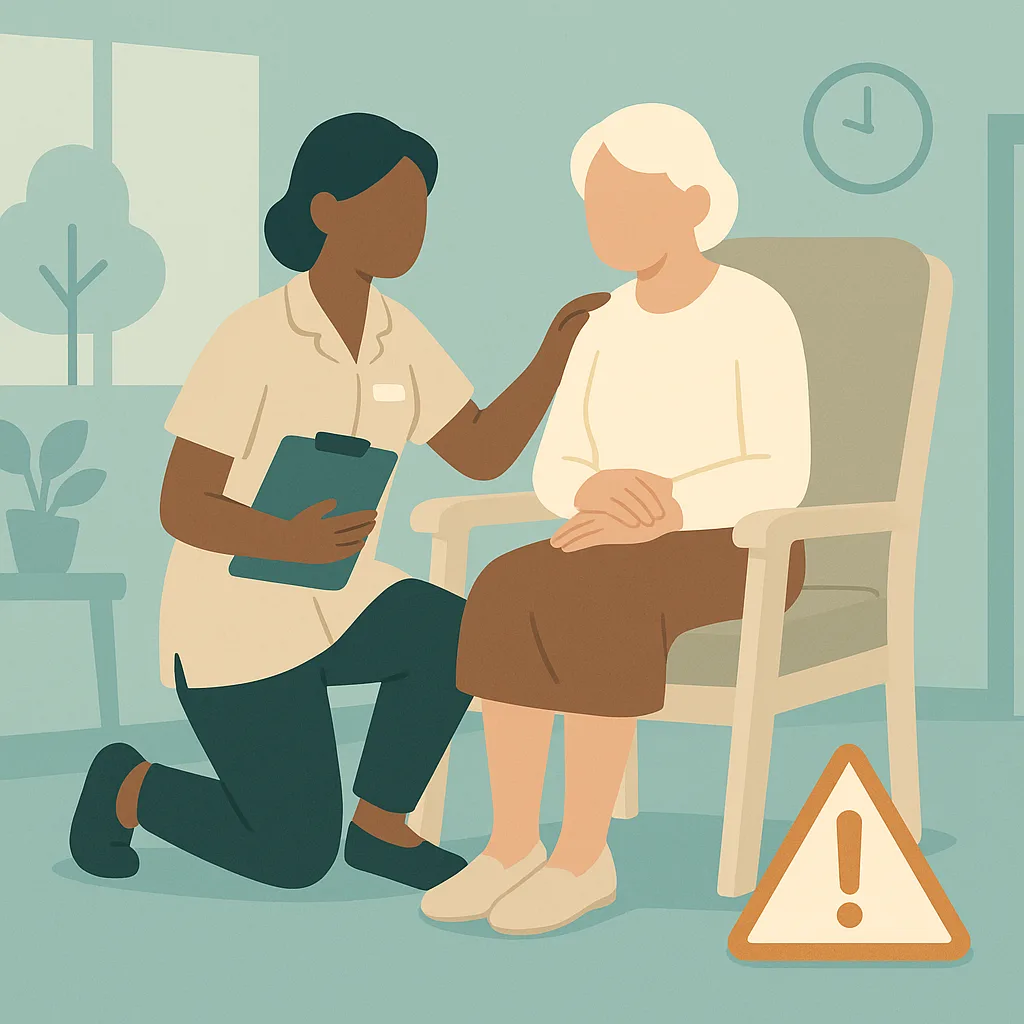 Annual Certificate
RIDDOR (Accident and Incident Reporting)
This module teaches you when and how to report accidents and incidents under RIDDOR (Reporting of Injuries, Diseases and Dangerous Occurrences Regulations 2013). You will learn which events must be reported to the Health and Safety Executive, how to recognise reportable incidents in your daily work, and the correct procedures to follow at our home.
Bulk discounts from 10+ licences
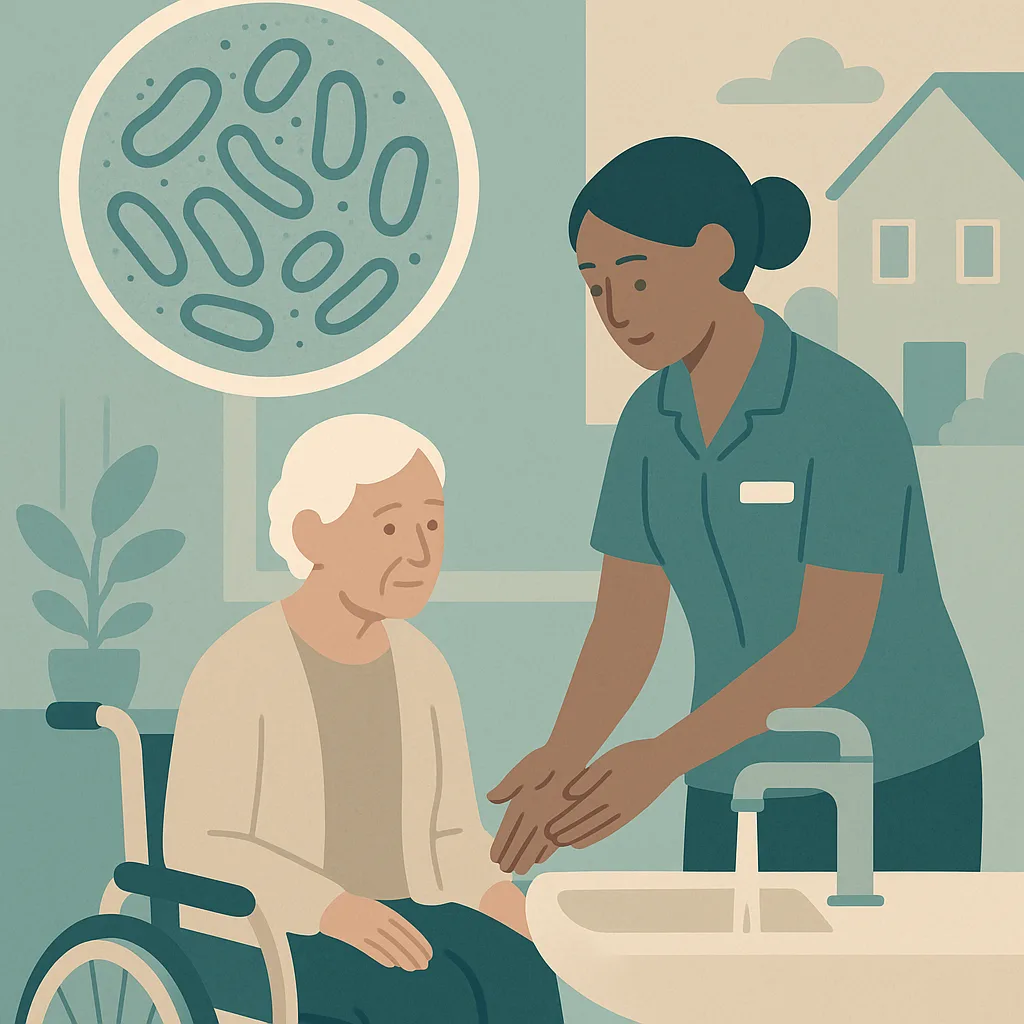 Annual Certificate
Legionella / Water Safety Awareness
This training helps you understand the risks of Legionella bacteria in water systems and how to keep residents and yourself safe. You will learn how to spot warning signs, follow our home's water safety procedures, and take the right action if you have concerns. Protecting water safety is part of maintaining safe premises under our health and safety responsibilities.
Bulk discounts from 10+ licences
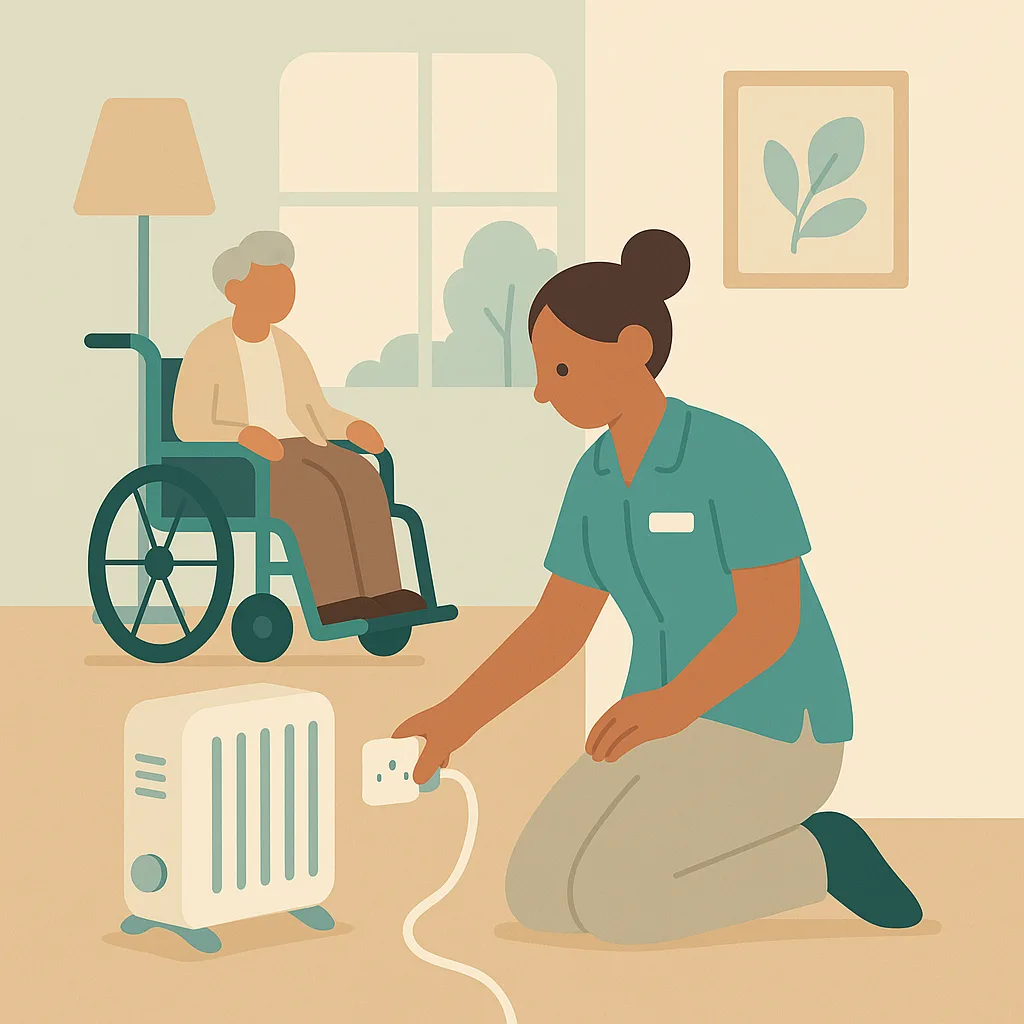 Annual Certificate
Electrical Safety
This module covers how to use electrical equipment safely in our home and what to do if you spot a problem. You will learn how to protect residents, visitors and yourself from electrical hazards by following our maintenance procedures and reporting any faults immediately.
Bulk discounts from 10+ licences
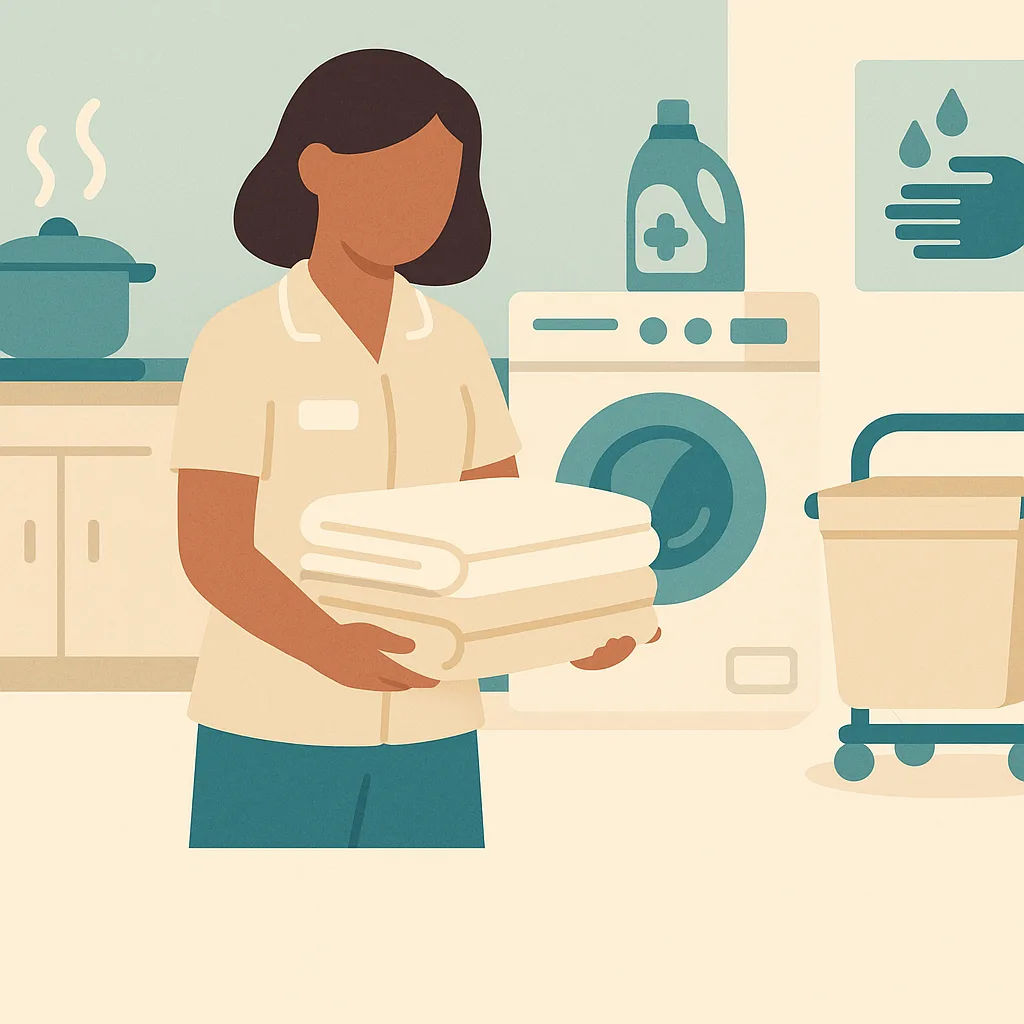 Annual Certificate
Kitchen and Laundry Safety
This module covers the safe use and maintenance of our kitchen and laundry facilities. You will learn how to handle linen correctly to prevent infection spread, use laundry equipment safely, and maintain high hygiene standards in line with our home's policies. These practices protect residents and staff from infection and injury.
Bulk discounts from 10+ licences
Give your team display screen equipment (dse) training that actually sticks.
Add it to your basket, allocate it in seconds, and let the evidence build itself.
Compared
Three ways to train a care team.
These modules are written and kept current by us, so your managers do not have to write or maintain them. We have compared what each approach does rather than naming providers, because products change and this should still be true next year.
| CareStream | A generic e-learning library | A trainer you book | |
|---|---|---|---|
| Try a real lesson and a real question before you buy | |||
| Learning outcomes and time to complete stated up front | |||
| Written lesson sections, each with its own illustration | |||
| Interactive exercises after the lesson that teaches them, in every module | |||
| Assessment in every module, with the key points to revisit | |||
| Taken in any of sixty plus languages | |||
| A wrong answer triggers a follow-up lesson, not just a re-sit | |||
| Practical sign-off by a manager where the subject needs it | |||
| Completion files itself into your training matrix and evidence pack | |||
| Bought one module at a time, with no annual contract |
Generic libraries are often cheaper per learner. They teach a national standard rather than being built, updated and evidenced around the way a CQC-registered service is actually inspected.
Care policies
Every module is written from a policy
If the policy behind it is out of date, the training inherits that. Sixty six policies written for your service, checked against current law and read by a person before they carry your name, from £39.